


Quick Answer: What Is an AI Tool for Business Documents?
An AI tool for business documents helps you draft, refine, and proofread memos, proposals, reports, and client-facing files inside a Word-class editor—so structure, tone, and spelling stay in one place instead of bouncing through external chat copy-paste.
The strongest workflows keep draft generation, tone refinement, and spell/grammar review inside the same editor—avoiding copy-paste from external chat tools that can break formatting and skip in-place review.
WPS Writer (part of WPS Office, a free all-in-one suite to edit Word, Excel, and PPT) exposes built-in WPS AI Writer tools through Productivity Tools: Smart Create for structured drafts, AI Refine for tone polish on selected sentences, and AI Spell Check for document-wide proofreading. Available on Windows, macOS, Linux, iOS, and Android; steps below follow the desktop WPS Writer workflow on WPS Academy.
Editorial check: Business-document AI output requires human fact-checking of data, client names, and executive-summary accuracy; confirm AI limits on live WPS pricing before heavy use; an internet connection is required for AI processing; results may still require manual editing. Do not treat AI output as client-ready or legally binding without review.
Business brief / prompt — document type, audience, sections
Productivity Tools → Smart Create — structured draft with headings and sections
Expand sections — follow-up prompts in the AI prompt box
Accept / Redo / Discard — iterate inside the open file
AI Refine — polish selected sentences for business tone
AI Spell Check — document-wide spelling and grammar pass
Find & Replace — bulk-fill client or company placeholders
Human fact-check — verify data, tone, and file layout
Key Facts
| Topic | Detail |
|---|---|
| Business document types | Memos, proposals, reports, project briefs, and client-facing communications needing clear structure, accurate facts, and consistent tone |
| Integrated vs external AI | Draft generation, tone refinement, and spell/grammar review work best inside the same Word-class editor |
| External chat risk | Chat tools may rewrite text but require manual paste-back—increasing risk of lost styles, tables, and headers |
| Core AI steps | Prompt-to-draft generation, section expansion, tone polish on selected sentences, document-wide spell/grammar review |
| WPS entry point | Productivity Tools menu exposes Smart Create, Refine, and Spell Check |
| Smart Create start | Open WPS Office → Docs tab → Smart Create; new document with AI prompt box and preset instructions |
| Iteration controls | After generation: Discard, Redo, or Accept; follow-up prompts to optimize or expand content |
| AI Refine scope | Select specific sentences for professional tone—Refine may change original tone on context-sensitive text |
| File compatibility | WPS pricing page states 100% Compatible with Microsoft File Formats—verify .docx and PDF export on target files |
| Platforms & review | Windows, macOS, Linux, iOS, and Android; internet required; human review mandatory before sharing |
What Business Documents AI Tools Should Handle
Business documents commonly include memos, proposals, reports, project briefs, and client-facing communications that need clear structure, accurate facts, and consistent tone before sharing.
| Document type | Typical AI-assisted need |
|---|---|
| Memos | Quick structured draft with clear sections and professional tone |
| Proposals | Multi-section layout (introduction, objectives, timeline, resources, outcomes) |
| Reports | Headings, bullet points, and expandable sections from a detailed prompt |
| Project briefs | Scope, milestones, and stakeholder sections with room to expand |
| Client communications | Tone polish on selected sentences without rewriting the entire file |
AI document generators are designed to simplify creating documents; users historically prepared reports, proposals, and other files manually, but AI can now produce well-structured documents with much less effort per WPS Academy. You still own accuracy and client tone—the tool accelerates structure and first drafts.
Integrated Editor AI vs External Chat Copy-Paste
Integrated editor AI differs from external chat AI: chat tools may rewrite text but require manual paste-back, increasing risk of lost styles, tables, and headers in business documents.
| Approach | Workflow | Risk |
|---|---|---|
| Integrated WPS AI Writer | Draft, expand, refine, and spell-check inside WPS Writer | Formatting stays in the open file; review happens in context |
| External chat AI | Copy prompt out → paste answer back | Styles, tables, headers, and numbering may break on paste-back |
For business documents that travel as .docx files, keeping AI inside the editor reduces rework. External chat can still help brainstorm—but treat its output as raw text that needs careful paste and format repair, not a finished deliverable.
WPS Office and WPS Writer Overview
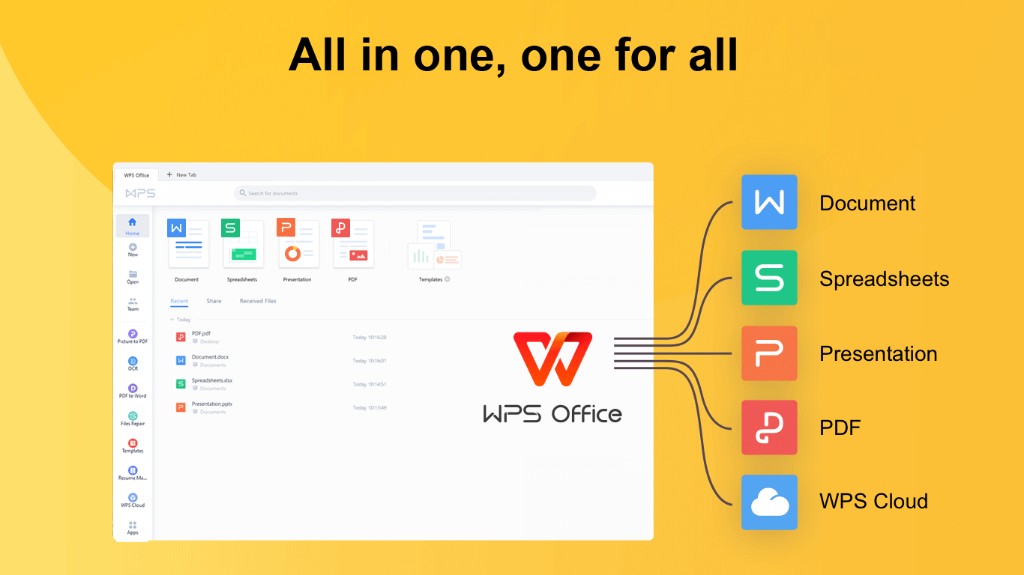
WPS Office is described as a free all-in-one suite to edit Word, Excel, and PPT. WPS Writer is where built-in WPS AI Writer tools live for business-document workflows.
WPS Writer: Open Productivity Tools and Choose Smart Create, Refine, or Spell Check
WPS Writer Productivity Tools menu exposes Smart Create, Refine, and Spell Check as built-in AI writing enhancements per WPS Academy.
For AI tool for business documents workflows, the documented path is: Smart Create → structured draft → expand sections → Accept/Redo/Discard → AI Refine on selected sentences → AI Spell Check → human fact-check → save .docx.
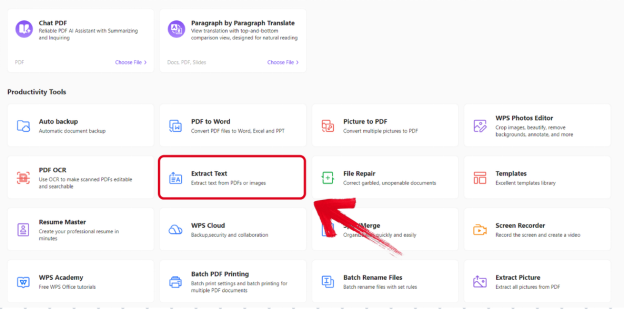
Watch out: The Productivity Tools menu proves the integrated AI toolkit—not a finished client-ready document. Confirm AI limits on live WPS pricing; verify layout on target .docx files before sharing.
Start a Business Document With Smart Create
To start AI business-document drafting in WPS Writer: open WPS Office → Docs tab → Smart Create; a new document opens with an AI prompt box and preset instructions per WPS Academy.
Prompt-to-document creation: describe the document type you need (e.g., project proposal or report), and AI generates a structured draft within seconds with structure, formatting, and relevant content per WPS Academy.
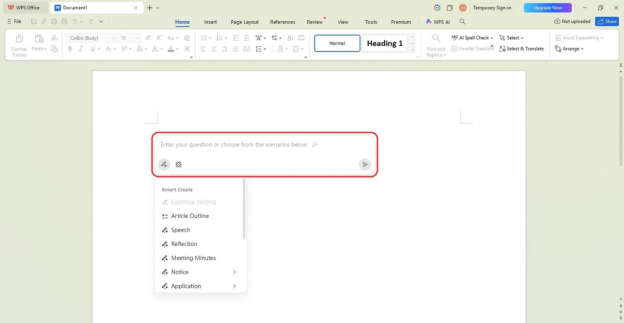
Write a Prompt That Lists Sections and Audience
WPS Academy demonstrates a detailed business-style prompt: "Create a project proposal… Include an introduction, objectives, timeline, required resources, and expected outcomes" — more detailed prompts yield better results per Academy best-practice tip.
Automatic formatting: AI document generators can apply headings, bullet points, sections, and layouts automatically so documents are structured and ready to edit or share per WPS Academy.
Read the on-screen structured draft before accepting—check that headings match your brief and placeholder names are clearly marked for later replacement. Optional result-state screenshots for multi-section document body output are pending harvest; follow the labeled steps above and review output in your open document.
Expand and Optimize Sections With Follow-Up AI Prompts
After an initial draft, users can enter follow-up instructions to optimize or expand content (e.g., add budget estimate and risk assessment sections) in the WPS AI prompt box per WPS Academy.
Use follow-up prompts to add missing sections, tighten or expand a specific section, or request clearer placeholder labels for client or company names. Each follow-up runs inside the same Smart Create prompt box—no external copy-paste required.
Accept, Redo, or Discard as You Build the Document
After Smart Create generates a draft, users may Discard, use Redo for a new version, or click Accept to insert content into the document per WPS Academy.
Accept — inserts the draft into your open document for editing.
Redo — generates a fresh version from the same or revised prompt.
Discard — clears the suggestion without changing your document.
Polish Business Tone With AI Refine on Selected Text
AI Refine enhances selected content for improved structure and professional tone; WPS Academy recommends selecting specific sentences rather than entire documents, and warns Refine may change original tone on context-sensitive text per Academy troubleshooting table.
Refine is for business tone polish, not fact-checking. Verify names, numbers, and commitments after every Refine pass.
Proofread With AI Spell Check
WPS Academy documents AI Spell Check as part of WPS AI Writer productivity tools for catching spelling and grammar issues across documents.
Spell Check catches language errors—it does not validate revenue figures, dates, client names, or contractual language. Pair Spell Check with a manual read-through of every number and proper noun.
Tips for Facts, Client Tone, and Human Review
Fact-check every claim — AI may invent statistics, dates, or client names in body text.
Review client tone — executive summaries and client-facing lines need manual approval; Refine may shift tone unexpectedly.
Confirm AI limits — check live WPS pricing for current AI usage limits before batch document generation.
Internet required — AI processing requires an internet connection per WPS Academy guidance.
Manual editing expected — AI results may still require manual editing per Academy Pros/Cons.
Verify file compatibility — after Save As .docx or PDF export, test on target recipients.
Find & Replace placeholders — WPS Academy recommends Find and Replace (Ctrl + H) to bulk-fill repeated placeholders in AI-assisted business drafts.
Do not claim one-click client-ready or legally binding output. Do not claim AI auto-ingests live CRM or spreadsheet metrics without user-provided data.
Brief Note: AI Document Tools in Microsoft Word (Plan-Gated Context)
Word, Excel, and PowerPoint for the web are free with a Microsoft account and include 5 GB OneDrive storage per Microsoft's free web page.
Full Copilot drafting assistance in Word typically requires paid or eligible Microsoft 365/Copilot plans—not implied on the personal free web tier alone. Verify your plan before comparing Copilot-assisted drafting to WPS integrated Smart Create, Refine, and Spell Check. This guide does not provide a Copilot vs WPS feature matrix.
FAQ
What is an AI tool for business documents?
An AI tool for business documents helps you generate structured drafts, expand sections, polish tone on selected text, and run spell/grammar review inside a Word-class editor—covering memos, proposals, reports, and client-facing files.
Why use integrated editor AI instead of external chat?
Integrated AI keeps formatting, tables, and headers in the open document. External chat requires paste-back, which increases risk of lost styles, tables, and headers.
How do I start drafting a business document in WPS Writer?
Open WPS Office → Docs tab → Smart Create. A new document opens with an AI prompt box and preset instructions per WPS Academy.
What should I include in a business-document prompt?
List the document type, audience, and sections you need. WPS Academy shows a project proposal example with introduction, objectives, timeline, resources, and outcomes—more detailed prompts yield better results.
Can AI Refine polish an entire proposal at once?
WPS Academy recommends selecting specific sentences rather than entire documents. Refine may change original tone on context-sensitive executive or client-facing text.
Does AI Spell Check verify business facts and figures?
No. Spell Check catches spelling and grammar issues. You must human fact-check data, client names, and executive-summary accuracy before sharing.
Do I need an internet connection?
Yes. An internet connection is required for AI processing per WPS Academy guidance.
Can I use WPS AI for business documents for free?
WPS Office is described as a free all-in-one suite. AI feature limits vary by plan—confirm AI limits on live WPS pricing before heavy use.
What file formats should I verify before sharing?
After AI-assisted drafting, verify file compatibility (.docx, PDF export) on target recipients before sharing. WPS pricing page states 100% Compatible with Microsoft File Formats—verify on target files.
Should I trust AI business-document output without editing?
No—not without human review. AI drafts are starting points. Fact-check content, confirm client tone, and verify .docx layout before sharing.
Sources and Last Reviewed
| Source | Role |
|---|---|
| WPS Academy — AI document generator guide (1898618) | Primary: Smart Create, Refine, Spell Check, expand prompts, business prompts, Find & Replace |
| WPS Academy — What is WPS Office | Suite positioning |
| WPS Pricing | File compatibility claim; AI limit recheck |
| Microsoft 365 free for the web | Brief Word web tier context |
Last reviewed: 2026-07-01