


Quick Answer: Why Drafting Feels Slow Without an AI Assistant
Drafting documents in office apps without an integrated AI assistant feels slow because every step runs manually and sequentially—blank-page start, research in other tabs, hand-built structure, formatting, proofreading loops, and copy-paste cleanup from external chat tools. Without an in-app AI assistant, drafters must research, outline, write, format, and proofread sequentially while context switching between browser tabs and the editor adds friction.
WPS Office offers a path out: WPS AI Writer integrates Smart Create, Refine, and Spell Check into WPS Writer via Productivity Tools—draft, refine, and proofread inside the open document on Windows, macOS, Linux, iOS, and Android (steps below sourced for desktop Writer). Open WPS Office → Docs → Smart Create to skip the blank page, iterate with Accept / Redo / Discard, and polish before sharing.
Editorial check: AI-assisted output requires human fact-checking; confirm AI limits on live WPS pricing; an internet connection is required for AI processing; results may still require manual editing; verify .docx layout on target files before sharing.
Key Facts
| Topic | Detail |
|---|---|
| Core problem | Without an in-app AI assistant, drafting runs sequentially through research, outline, write, format, and proofread—each step adds friction |
| Context switching | Jumping between research or chat browser tabs and the document editor interrupts drafting flow when AI is not embedded in the office app |
| Manual formatting | Headings, bullet lists, and section structure applied by hand consume time separate from writing content |
| Bolt-on AI friction | Copy-paste from external chat AI often breaks formatting and section structure, requiring cleanup—unlike built-in Smart Create that generates content inside the open document |
| Proofreading loops | Without integrated Refine or Spell Check, polish requires manual re-reading and sentence-by-sentence edits across multiple passes |
| Integrated AI definition | An AI assistant in office apps means Smart Create, Refine, and Spell Check are integrated into the document editor—not a separate browser tab or copy-paste workflow |
| WPS Productivity Tools | Productivity Tools menu exposes Smart Create, Refine, and Spell Check as built-in AI writing enhancements inside WPS Writer |
| Smart Create entry | Open WPS Office → Docs tab → Smart Create → new document with AI prompt box and preset instructions |
| Auto formatting | AI document generators apply headings, bullet points, sections, and layouts automatically so documents are structured and ready to edit or share |
| Iteration controls | After Smart Create generates a draft, choose Discard, Redo for a new version, or Accept to insert content—faster iteration than manual full rewrites |
| AI Refine | Enhances selected sentences for improved structure and professional tone—may change original tone on context-sensitive text |
| AI Spell Check | Catches spelling and grammar issues—human review of facts and figures still required |
| Suite context | WPS Office is a free all-in-one suite to edit Word, Excel, and PPT with integrated Writer AI tools |
| File compatibility | WPS pricing page states 100% Compatible with Microsoft File Formats—verify AI-generated .docx on target files before sharing |
| Platforms | Windows, macOS, Linux, iOS, and Android; AI drafting steps sourced for desktop Writer workflow |
| Microsoft context | Word for the web is free with a Microsoft account and includes 5 GB OneDrive—full Copilot drafting in Word typically requires paid or eligible M365/Copilot plans |
| Human review | Fact-check data; internet required for AI; confirm AI limits on live pricing; manual editing may still be needed |
What "Without an AI Assistant in Office Apps" Really Means
An AI assistant in office apps is not the same as opening ChatGPT in a browser tab. Integrated means draft, refine, and proofread tools live inside the document editor where you already work—not a separate app you alt-tab to for every paragraph.
Without an integrated assistant, you still have a capable word processor—but you carry the full drafting burden yourself:
Blank-page start — no prompt-to-draft path inside the editor.
Tab switching — research, outlines, and AI suggestions happen outside the document window.
Paste cleanup — content copied from external chat often breaks styles, headings, and section structure.
Manual polish loops — spelling, grammar, and tone fixes run sentence by sentence without in-document AI tools.
Bolt-on AI (external chat copy-paste) is not an AI assistant inside the office app—drafting still requires tab switching and paste cleanup even when a chat tool generates good text.
Six Reasons Manual Drafting Takes Longer
| # | Bottleneck | Why it slows you down |
|---|---|---|
| 1 | Blank page and research friction | You start from zero and must gather sources, outline, and write each section sequentially without a prompt-to-draft shortcut |
| 2 | Context switching | Moving between research tabs, chat tools, and the editor breaks flow and delays first-draft completion |
| 3 | Manual structure and formatting | Applying headings, bullet lists, and sections by hand adds work on top of writing the actual content |
| 4 | Proofreading rewrite loops | Without integrated Spell Check or Refine, you re-read and edit sentence by sentence across multiple passes |
| 5 | Bolt-on chat copy-paste | Pasting from external AI into Word-class editors often breaks formatting and structure, forcing cleanup before you can share |
| 6 | Full rewrites on bad sections | Without Accept / Redo / Discard controls, a weak section means manual rewrite from scratch |
These are editorial workflow assessments—not invented productivity statistics. The pattern is consistent: when AI is not embedded in the office app, each drafting phase stays separate and manual.
How an Integrated AI Assistant Changes the Workflow
An integrated assistant compresses sequential manual steps into a loop inside the same document editor. Compare the two paths side by side:
Manual path (no in-app AI)
Blank page start
Research in browser tabs
Outline sections manually
Write each section
Apply headings and bullets by hand
Multiple proofreading passes
Revise weak sections manually
Integrated AI path (WPS Writer)
Smart Create prompt
Structured draft with headings and sections
Accept / Redo / Discard iteration
Follow-up prompts to expand sections
AI Refine on selected sentences
AI Spell Check
Human fact-check before sharing
The integrated path does not eliminate human review—it removes friction between drafting phases so you spend less time on structure, formatting, and paste cleanup.
WPS Office: AI Assistant Built Into the Document Editor
WPS Office is described as a free all-in-one suite to edit Word, Excel, and PPT per WPS Academy. For users frustrated by slow manual drafting without an integrated AI assistant, WPS AI Writer lives inside WPS Writer—not in a separate browser tab.
An AI assistant in office apps, per WPS Academy positioning, means Smart Create, Refine, and Spell Check are integrated into the document editor as part of Productivity Tools. WPS is available on Windows, macOS, Linux, iOS, and Android; the workflow steps below follow the desktop Writer path documented on WPS Academy.
Best for: Users who want prompt-to-draft, Refine, and Spell Check inside the same Word-class editor—without copy-pasting from external chat tabs.
Watch out: WPS states 100% Compatible with Microsoft File Formats—verify AI-generated documents on your target .docx files before sharing. Do not claim drafting becomes instant or error-free.
Open Productivity Tools — Smart Create, Refine, and Spell Check
WPS Writer Productivity Tools menu exposes Smart Create, Refine, and Spell Check as built-in AI writing enhancements inside WPS Office per WPS Academy:
Smart Create — generate a structured first draft from a prompt inside the editor.
Refine — polish selected sentences for structure and professional tone.
Spell Check — review spelling and grammar before you share.
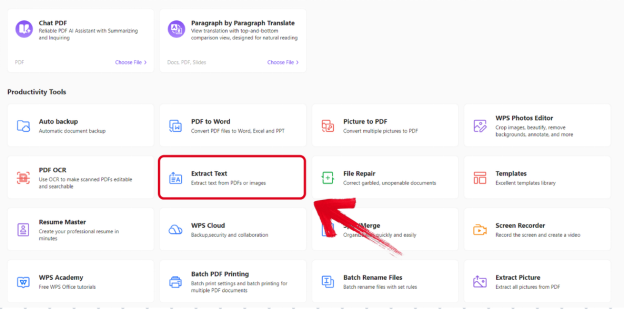
Editorial check: The Productivity Tools menu shows where AI features live in Writer—it does not prove a finished document output. Always review content before sharing.
Speed Up First Drafts With Smart Create (Skip the Blank Page)
To accelerate drafting and address blank-page slow start per WPS Academy:
Open WPS Office.
Go to the Docs tab.
Click Smart Create.
A new document opens with an AI prompt box and preset instructions.
Describe your document type and key sections in the prompt box. WPS AI produces a structured draft with headings, bullet points, sections, and layouts automatically—so the document is structured and ready to edit or share rather than a blank page waiting for manual structure. You can enter follow-up instructions to optimize or expand content after the initial draft in the WPS AI prompt box.
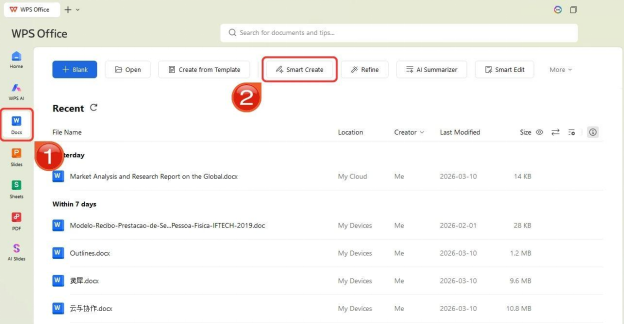
Editorial check: Steps are sourced for desktop workflow. Do not assume identical Smart Create behavior on mobile without verifying against current WPS Academy guidance.
Iterate Faster With Accept, Redo, or Discard
After Smart Create generates a draft, WPS Academy documents three controls:
Discard — reject the current AI output without inserting it.
Redo — request a new version of the same prompt or section.
Accept — insert the AI content into the document.
These controls support faster iteration than manual full rewrites when a section needs adjustment. Work one section at a time so you can review accuracy before accepting the next block.
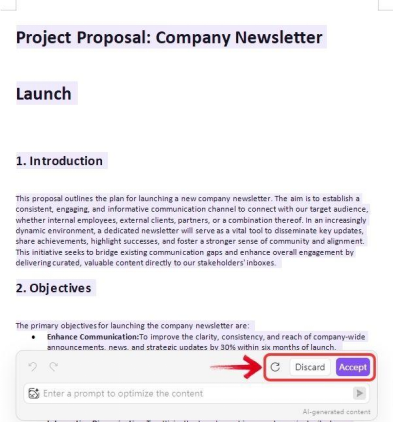
Use follow-up instructions in the AI prompt box to add missing sections—budget estimates, risk assessments, executive summaries—without starting over from a blank page.
Editorial check: Expanded sections may introduce unverified data—fact-check every number, date, and name before sharing.
Polish Structure and Tone With AI Refine
AI Refine enhances selected content for improved structure and professional tone per WPS Academy. Select specific sentences rather than entire documents—Refine may change original tone on context-sensitive text such as quotes or legal disclaimers.
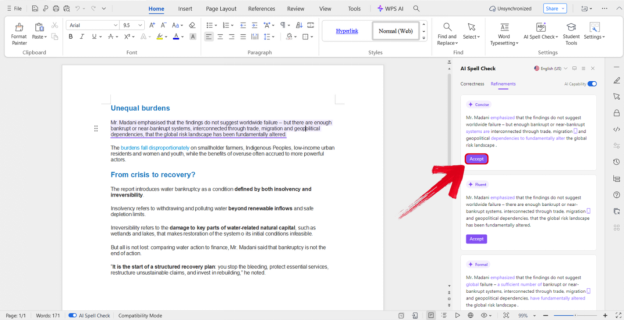
Editorial check: Re-read every Refine output against your source materials before sharing.
Catch Errors Faster With AI Spell Check
WPS Academy documents AI Spell Check as part of WPS AI Writer productivity tools for catching spelling and grammar issues. Run Spell Check after drafting and refining, before you export or share.
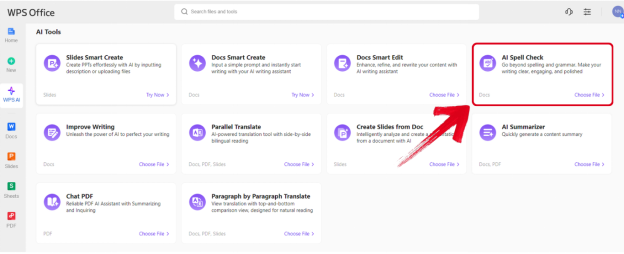
Editorial check: Spell Check catches language errors—it does not verify facts, figures, dates, or names. Human review of facts and figures remains mandatory.
Brief Note: Microsoft Copilot in Word (Plan-Gated Context)
Word, Excel, and PowerPoint for the web are free with a Microsoft account and include 5 GB OneDrive storage per Microsoft's free web page. That tier is useful context—but full Copilot drafting assistance in Word typically requires paid or eligible Microsoft 365/Copilot plans, not the personal free web tier alone.
Office apps without Copilot access leave users on the manual drafting paths described above—blank page, manual formatting, and external chat copy-paste unless they adopt an integrated assistant elsewhere.
Editorial check: This guide focuses on the WPS integrated AI Writer workflow. Do not publish a Copilot vs WPS feature matrix or imply Copilot is unlimited on the free web tier.
Tips: Human Review, Facts, and AI Limits
Built-in AI writing accelerates drafting—but output still requires your judgment:
Fact-check every claim — AI may invent statistics, dates, or names.
Review section by section — use Accept / Redo / Discard incrementally rather than accepting everything at once.
Scope AI Refine to selected sentences — protect context-sensitive tone on quotes and disclaimers.
Confirm AI limits — check live WPS pricing for current AI usage limits before heavy use.
Internet required — AI processing requires an internet connection per WPS Academy guidance.
Verify file compatibility — after Save As
.docxor PDF export, verify document layout on target files before sharing.Manual editing expected — AI results may still require manual editing even after Refine and Spell Check.
FAQ
Why is drafting slow without an AI assistant in office apps?
Without an in-app AI assistant, drafters run research, outline, write, format, and proofread sequentially from a blank page—plus context switching to browser tabs and manual cleanup after copy-pasting from external chat tools.
What counts as an integrated AI assistant vs bolt-on AI?
Integrated means Smart Create, Refine, and Spell Check live inside the document editor (WPS Writer Productivity Tools). Bolt-on means generating text in an external chat tab and copy-pasting into the office app—often breaking formatting and structure.
How do I speed up drafting in WPS Office?
Open WPS Office → Docs tab → Smart Create. A new document opens with an AI prompt box and preset instructions. Generate a structured draft, expand with follow-up prompts, iterate with Accept / Redo / Discard, run AI Refine on selected sentences, and finish with AI Spell Check.
Does WPS AI eliminate all manual editing?
No. AI results may still require manual editing. Human fact-checking of data, names, and figures is mandatory. Confirm AI limits on live WPS pricing before relying on unlimited drafting.
Do I need the internet for WPS AI drafting?
Yes. An internet connection is required for AI processing per WPS Academy guidance.
Can I use this workflow on mobile?
WPS is listed for Windows, macOS, Linux, iOS, and Android, but step-by-step workflow in this guide is sourced for desktop Writer. Do not claim an identical mobile suite-AI workflow without Academy proof.
How does WPS AI Writer compare to Microsoft Copilot in Word?
WPS AI Writer (Smart Create, Refine, Spell Check) is integrated into WPS Writer inside WPS Office. Copilot drafting assistance in Word typically requires paid or eligible Microsoft 365/Copilot plans—verify your Microsoft plan before comparing workflows.
Sources and Last Reviewed
| Source | Role |
|---|---|
| WPS Academy — AI Document Generator Guide | Smart Create, Refine, Spell Check, integrated AI assistant workflow |
| WPS Academy — What Is WPS Office | Suite positioning |
| WPS Pricing | Microsoft file format compatibility; AI limit recheck |
| Microsoft 365 Free for the Web | Web tier and Copilot plan context |
Last reviewed: 2026-07-01