


Quick Answer: What Is an AI Summarizer for Long Documents?
An AI summarizer for long documents uses AI to condense lengthy text—reports, academic PDFs, and multi-page reading—into concise key points so you grasp main ideas faster without reading every page.
Long documents in summarizer workflows often arrive as multi-page PDFs (study material, reports, research papers). Strong workflows combine key-point extraction, source-linked citations, and follow-up Q&A on the same file—not only a pasted web URL.
WPS AI PDF inside WPS Office lets you open a long PDF, launch WPS AI from the WPS AI widget, upload the file for cloud analysis, review key points with source citations in the Insight tab, and ask follow-up questions in the Inquiry tab—with custom prompts to pull specific report information. WPS AI PDF integrates with WPS PDF and WPS Writer so you can switch to Writer, Spreadsheet, or Slides for follow-up notes after reading AI insights. Available on Windows, macOS, Linux, iOS, and Android.
Editorial check: AI summaries require human verification on legal, medical, financial, or graded material; confirm AI limits on live WPS pricing before heavy use; an internet connection is required for cloud upload and AI processing; do not treat summaries as a substitute for full reading on compliance-critical documents. This guide covers WPS AI PDF long PDF summarization—not multi-vendor roundup lists, Writer meeting-notes steps, or ChatGPT as the primary workflow.
Open long PDF in WPS Office
WPS AI widget — top-right entry in WPS PDF
Upload — send PDF to WPS Cloud for analysis
Process — wait for AI to analyze the document
Insight tab — key points with source citations
Inquiry tab — follow-up Q&A on PDF content
Custom prompt — extract specific report sections
Human review — verify critical facts on high-stakes files
Writer notes — optional switch to WPS Writer for follow-up
Key Facts
| Topic | Detail |
|---|---|
| Summarizer definition | AI condenses lengthy text into concise key points so readers grasp main ideas faster without reading every page |
| Long-document format | Workflows often start with multi-page PDFs—study material, reports, research papers |
| Strong summarizer traits | Key-point extraction, source-linked citations, follow-up Q&A, custom prompts, data security, and office-suite integration |
| WPS AI PDF scope | Integrated summarization inside WPS PDF with Insight tab (key points) and Inquiry tab (PDF Q&A) |
| Step 1 | Open the long PDF you need summarized in WPS Office |
| Step 2 | In WPS PDF, click the WPS AI widget at the top right to start summarization |
| Step 3 | The widget opens the WPS AI pane on the right side of the WPS PDF interface |
| Step 4 | Click Upload to upload the PDF to WPS Cloud so WPS AI can analyze and extract key points |
| Processing | WPS AI processes the PDF (may take a few moments) before displaying results |
| Insight tab | Displays key points of the PDF with source citations at the end of each point |
| Inquiry tab | Ask questions related to the PDF; WPS AI chats and assists with queries about document content |
| Custom prompts | Add prompts to extract particular information from a report and shape summary style/depth through prompt wording |
| Suite integration | Summarize inside WPS PDF, then switch to WPS Writer for follow-up notes |
| Data security | Uploaded PDFs handled securely and confidentially, encrypted; WPS AI does not use uploaded data for model training |
| Free tier | WPS AI can be used for free with essential features including summaries, PDF chat, and OCR—verify current plan limits on live pricing |
| Platforms & review | Windows, macOS, Linux, iOS, and Android; internet required; human verification on high-stakes documents |
When AI Summarization Helps (and When It Does Not)
AI summarization fits when you need a fast orientation before a deeper read—skimming a lengthy report, scanning dense academic text, or preparing questions for a meeting. It helps when the document is too long to read in one sitting but you still need main themes, section highlights, and citation-backed bullet points.
Summarization is not a substitute for full reading when stakes are high. Legal contracts, medical records, financial filings, and graded coursework require human verification of every claim the AI highlights. AI may miss nuance, misread context, or over-compress technical detail. Use summaries as a starting map, then read the cited sections yourself.
Summarization also works best on text-based PDFs. Image-only or heavily scanned pages may need OCR before analysis—do not assume flawless results on unscanned image PDFs without testing your file.
What to Look for in a Long-Document Summarizer
| Capability | Why it matters |
|---|---|
| Key-point extraction | Surfaces main ideas without reading every page |
| Source-linked citations | Lets you jump back to the original passage and verify |
| Follow-up Q&A | Answers targeted questions on the same file after the overview |
| Custom prompts | Pulls specific information from a report instead of a generic summary |
| Data security | Protects private files during cloud analysis |
| Office-suite integration | Moves summaries into notes, edits, or slides without export friction |
WPS AI PDF addresses these inside WPS Office: Insight tab for cited key points, Inquiry tab for PDF chat, custom prompts for targeted extraction, encrypted confidential handling per Academy FAQ, and Writer integration for follow-up work.
WPS AI PDF: Summarize Long PDFs Inside WPS Office
WPS AI PDF integrates with WPS PDF and WPS Writer—users can summarize inside the PDF tool and switch to Writer, Spreadsheet, or Slides to capture follow-up notes after reading AI insights per WPS Academy.
WPS Office is described as a free all-in-one suite to edit Word, Excel, and PPT. For AI summarizer for long documents workflows, the documented path is open PDF → WPS AI widget → Upload → Insight key points → Inquiry Q&A → optional targeted prompt → human review → optional Writer notes.
Best for: Readers who work with multi-page PDF reports and want cited key points plus PDF chat inside the same office suite they already use.
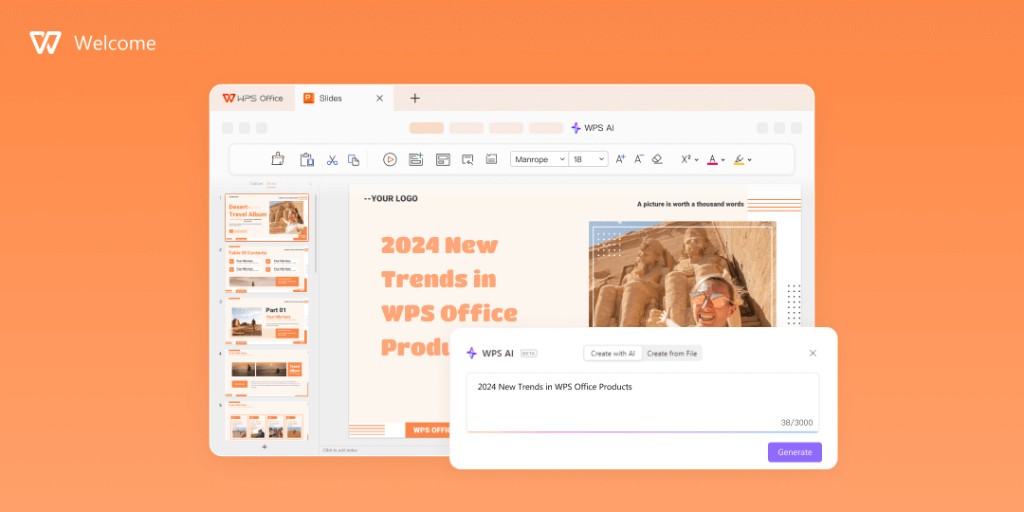
Watch out: Overview images orient the topic—they do not replace step-by-step WPS AI widget or Insight tab workflow proof. Confirm AI limits on live WPS pricing; verify critical facts yourself before acting on summaries.
Step 1 — Open Your Long PDF in WPS Office
Step 1: Open the long PDF you need summarized in WPS Office per WPS Academy how-to steps.
Launch WPS Office, open WPS PDF, and load the report, paper, or manual you want condensed. This guide follows the desktop WPS PDF workflow documented on WPS Academy; mobile PDF-AI steps may differ without separate Academy proof.
Step 2 — Open the WPS AI Pane from the PDF Toolbar
Step 2: In WPS PDF, click the "WPS AI" widget at the top right of the interface to start summarization per WPS Academy.
Step 3: The WPS AI widget opens the WPS AI pane on the right side of the WPS PDF interface per WPS Academy.
The pane is your control center for upload, Insight results, Inquiry chat, and custom prompts. Product workflow screenshots for the widget entry are pending harvest—follow the labeled steps above until assets are available.
Step 3 — Upload the PDF for AI Analysis
Step 4: Click Upload to upload the PDF to WPS Cloud so WPS AI can analyze and extract key points from the document per WPS Academy.
After upload, WPS AI processes the PDF (may take a few moments) before displaying results per WPS Academy. Processing time depends on file size and connection speed—wait for results before switching tabs.
Editorial check: Cloud upload is required for this documented workflow. An internet connection is required for upload and AI processing. See the Data security section below for how WPS handles uploaded files.
Step 4 — Review Key Points in the Insight Tab
Insight tab: WPS AI displays key points of the PDF with source citations at the end of each point per WPS Academy.
Use Insight as your first-pass map of the document. Each bullet should include a source reference so you can open the cited page and verify critical facts yourself—especially on technical, legal, or financial content.
WPS Academy also highlights keyword extraction and contextual understanding as useful when focusing analysis on specific topics or themes within a long document. Treat these as orientation aids, not guaranteed complete coverage.
Step 5 — Ask Follow-Up Questions in the Inquiry Tab
Inquiry tab: Users can ask questions related to the PDF; WPS AI chats and assists with queries about document content per WPS Academy (includes ChatGPT access for PDF-based inquiries per the same article).
After Insight gives you the overview, use Inquiry for targeted follow-ups—definitions, comparisons between sections, or questions about specific topics. Answers should stay tied to the uploaded PDF context; still verify anything you will cite externally.
Customize Summaries with Targeted Prompts
Users can add prompts to extract particular information from a report and shape summary style/depth through prompt wording per WPS Academy WPS AI PDF section.
Examples of prompt intent (word your own prompts to match your file):
"List only findings related to revenue growth, with page references."
"Summarize the methodology section in five bullet points."
"Extract action items assigned to the engineering team."
Custom prompts help when a generic summary is too broad for long reports with multiple themes. Re-run or refine prompts if the first output misses your focus area.
Turn Insights into Notes or Edits in WPS Writer
WPS AI PDF integrates with WPS PDF and WPS Writer—after you review Insight and Inquiry output, switch to WPS Writer, Spreadsheet, or Slides to capture follow-up notes, draft a memo, or build slides from the summarized themes per WPS Academy.
If you save notes as .docx, WPS pricing page states 100% Compatible with Microsoft File Formats—verify formatting on target files before sharing with colleagues who use Microsoft Office.
Data Security, Privacy, and Uploaded PDF Handling
WPS Academy FAQ states uploaded PDFs are handled securely and confidentially, encrypted, WPS AI does not use uploaded data for model training, and third parties are not permitted to access data for training—consult WPS AI Supplementary Terms for details.
Practical guidance for private reports:
Upload only files your organization allows on cloud-connected AI tools.
Avoid uploading highly restricted material unless your policy permits WPS Cloud analysis.
Treat AI output as draft intelligence—not an authoritative record.
Free Tier, AI Limits, and Human-Review Watchouts
WPS Academy FAQ states WPS AI can be used for free with essential features including summaries, PDF chat, and OCR; a free trial exposes premium features with limitations; verify current plan limits on live pricing before heavy use.
Editorial check summary:
Human verification required on legal, medical, financial, or graded material.
Confirm AI limits on live WPS pricing before heavy batch summarization.
Internet connection required for cloud upload and AI processing.
Do not claim summaries replace full reading for compliance-critical documents.
Verify
.docxexport if summary notes are shared externally.Desktop steps may differ on mobile—no mobile PDF-AI step-by-step without Academy proof.
FAQ
Can WPS AI summarize Word documents, or only PDFs?
This guide follows the documented WPS AI PDF workflow for long PDFs per WPS Academy. Writer-native long-document summarize steps were not sourced from live Academy pages during research—use the PDF path above for evidenced steps.
Do I need an internet connection?
Yes. The documented workflow uploads the PDF to WPS Cloud for analysis. An internet connection is required for upload and AI processing.
How accurate are AI summaries of long documents?
AI summaries speed orientation but can miss nuance or misread context. Verify critical facts against the cited source passages—especially on high-stakes material.
Is my uploaded PDF used to train AI models?
WPS Academy FAQ states WPS AI does not use uploaded data for model training and third parties are not permitted to access data for training. See WPS AI Supplementary Terms for full details.
Can I use WPS AI for free?
WPS AI can be used for free with essential features including summaries, PDF chat, and OCR per WPS Academy FAQ. Premium features may require a paid plan or trial—verify current plan limits on live WPS pricing.
Does WPS AI work on mobile for PDF summarization?
WPS is available on Windows, macOS, Linux, iOS, and Android. This guide documents the desktop WPS PDF workflow; mobile PDF-AI steps are not step-by-step sourced without separate Academy proof.
What is the difference between Insight and Inquiry?
Insight tab shows key points with source citations. Inquiry tab lets you ask follow-up questions and chat about PDF content. Use Insight for the overview map and Inquiry for targeted questions afterward.
Should I trust the summary for a contract or medical report?
No—not without human review. Use AI output as a starting map, then read and verify the original passages yourself before making decisions.
Sources and Last Reviewed
| Source | Role |
|---|---|
| WPS Academy — PDF summarizers guide (1881510) | Primary: WPS AI PDF workflow, Insight/Inquiry tabs, security and free-tier FAQ |
| WPS Academy — What is WPS Office | Suite positioning |
| WPS Pricing | File compatibility claim; AI limit recheck |
Last reviewed: 2026-07-01