


Quick Answer: Auto-Generate a TOC in Long WPS Writer Reports
To auto-generate a table of contents in a long report, open the document in WPS Writer, apply built-in Heading 1, Heading 2, and Heading 3 styles to every section title, then go to References → Table of Contents and pick a pre-formatted style or Insert Table of Contents for custom settings. WPS Writer populates page numbers and hierarchy from those styles—not from manually bold or enlarged text. After you edit the report, right-click the TOC → Update Field (or press F9) and choose Update entire table. Use View → Content to jump between sections in very long documents. WPS Academy notes these steps are similar to Microsoft Word but UI labels may differ by version—verify on your WPS build; desktop References-tab workflow is the primary path for auto-TOC.
Key Facts
| Topic | Detail |
|---|---|
| Prerequisite | Built-in Heading 1/2/3 from Home → Styles; manual formatting alone will not populate a TOC |
| Insert path | References tab → Table of Contents → pre-formatted style or Insert Table of Contents |
| Refresh | Right-click TOC → Update Field or F9 → Update entire table after report edits |
| Navigation | View tab → Content panel lists headings for jump navigation in long documents |
| Compatibility | WPS states Microsoft file format compatibility—verify complex long-report .docx before sharing |
Why Heading Styles Matter Before You Insert a TOC
WPS Writer will not recognize manually formatted headings for an automatic table of contents unless you apply proper built-in heading styles per the WPS Academy student TOC guide. Bold text, larger font size, or colored titles look like headings to readers but do not register in the TOC engine.
Apply Heading 1 for main chapters, Heading 2 for subsections, and Heading 3 for nested points from the Home tab → Styles section before you insert the TOC. This prerequisite applies to theses, business reports, white papers, and any document long enough to need page-level navigation.
Step-by-Step: Apply Heading 1, 2, and 3 in WPS Writer
Open your long report in WPS Writer on desktop.
Click the first major section title (for example, "Executive Summary").
On the Home tab, open the Styles section and select Heading 1.
Repeat for each primary chapter using Heading 1.
Select subsection titles and apply Heading 2; use Heading 3 for deeper nested headings.
Scan the document—every entry you want in the TOC must use a built-in heading style, not manual formatting alone.
Insert an Automatic Table of Contents (References Tab)
Once heading styles are in place:
Place the cursor where the TOC should appear (usually after the title page or abstract).
Open the References tab.
Click Table of Contents.
Choose a pre-formatted style from the gallery, or click Insert Table of Contents for custom settings per WPS Academy.
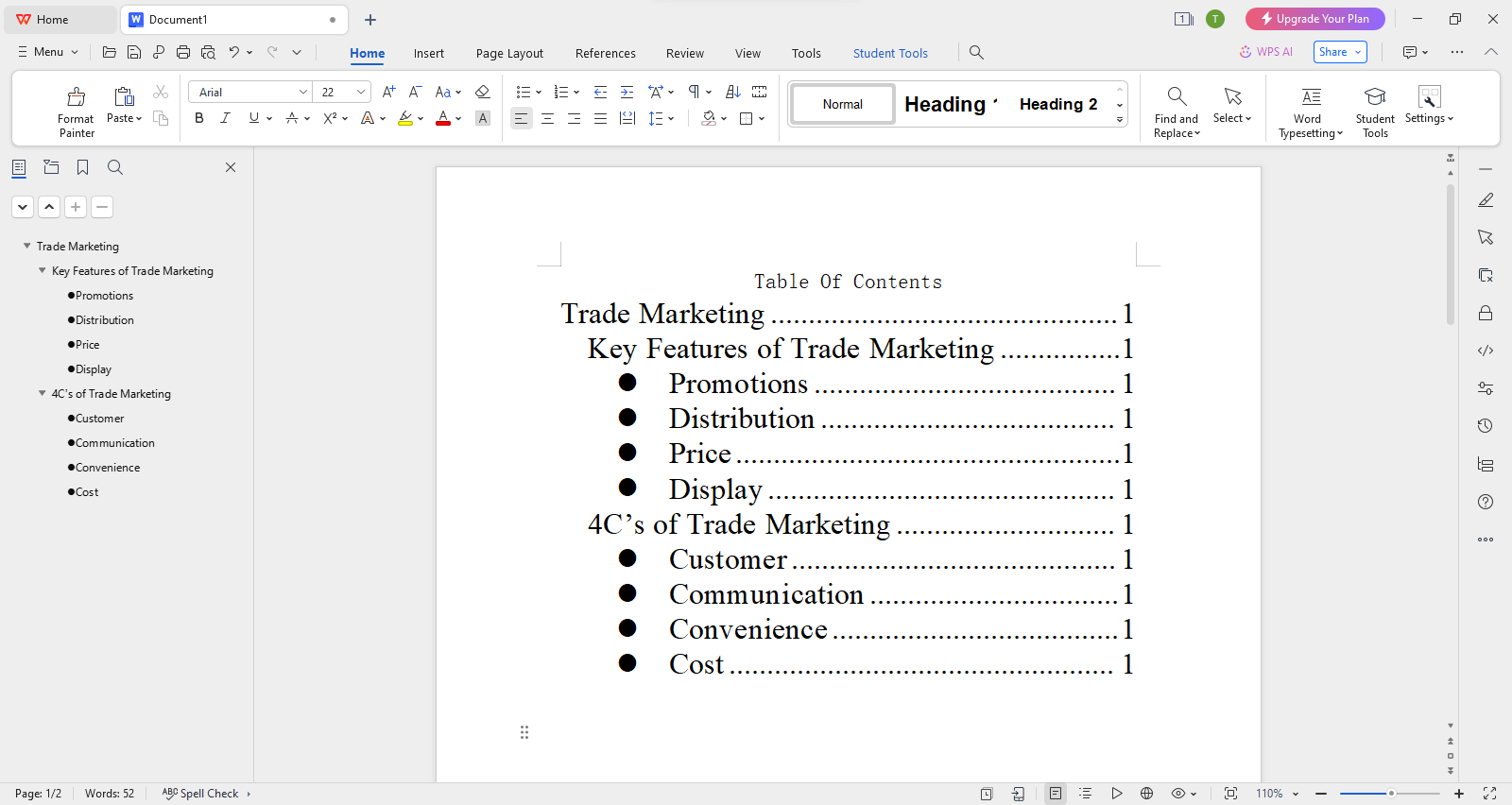
WPS Writer generates the TOC with page numbers and hierarchy pulled from your Heading 1/2/3 structure.
Customize TOC Levels, Tab Leaders, and Hyperlinks
For more control, use References → Table of Contents → Insert Table of Contents. In the dialog you can adjust:
Tab leader style (dots, dashes, or none)
Show levels (how many heading levels appear)
Page-number alignment
Print Preview before confirming
Use Hyperlinks so readers can Ctrl+click a TOC entry to jump to that section
These settings help long academic and business reports look polished without retyping page numbers manually.
Update the TOC After You Edit the Report
Long reports change. When you add sections, rename headings, or shift content:
Right-click the existing table of contents.
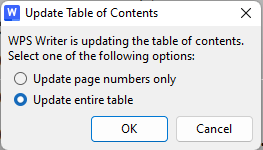
Choose Update Field (or press F9).
Select Update entire table to refresh all entries and page numbers.
Skipping this step leaves stale page numbers—a common issue in theses and quarterly reports that evolve over weeks.
Navigate Long Reports with the Content Panel (View Tab)
For documents too long to scroll efficiently, activate the Content navigation panel:
Open the View tab.
Click Content.
Browse the heading tree and jump to any section in one click.
This complements the TOC at the front of the document and helps authors verify heading structure before final export.
Tips for Long Business and Academic Reports
Best for: Theses, business reports, white papers, and policy documents that need an auto-updated TOC without manual retyping—within a free all-in-one WPS Office suite that edits Word-class files per WPS Academy.
Watch out: You must use built-in heading styles; UI labels may differ by WPS version; confirm whether mobile Writer exposes the full References-tab TOC workflow before claiming parity on Android or iOS. WPS states 100% Compatible with Microsoft File Formats for Office Tools on its pricing page—verify complex long-report .docx before sharing externally.
FAQ
How many heading levels should I use for a long report TOC?
Apply Heading 1, Heading 2, and Heading 3 at minimum per WPS Academy. In Insert Table of Contents, adjust Show levels if you need fewer or more tiers in the printed TOC.
Why does my TOC show "Error" or missing entries?
Usually manual formatting was used instead of built-in heading styles. Re-apply Heading 1/2/3 from the Home tab Styles section, then Update Field → Update entire table.
How do I remove a table of contents?
Go to References → Table of Contents dropdown and choose Remove Table of Contents per WPS Academy.
Can I auto-generate a TOC on WPS Writer mobile?
WPS is available on iOS and Android per WPS Academy, but the desktop References-tab insert path is the primary documented workflow. Review sections on mobile if needed; verify TOC insert on your device before relying on it for long reports.
Sources and Last Reviewed
Last reviewed: 2026-06-30