


Quick Answer: What Is an AI Document Proofreader?
An AI document proofreader helps you review a draft for spelling and grammar errors, unclear phrasing, and inconsistent tone—inside your document editor—before you share it with colleagues or clients.
AI document proofreading commonly means reviewing a draft for spelling and grammar errors, unclear phrasing, and inconsistent tone before sharing—combining automated suggestions with human judgment. An AI document proofreader is most useful when spell check and refine/polish tools live inside the same document editor—avoiding copy-paste from external chat tools that can break formatting and skip in-place review.
WPS Office is a free all-in-one suite to edit Word, Excel, and PPT on Windows, macOS, Linux, iOS, and Android. For AI document proofreading, open a draft in WPS Writer, use Productivity Tools to run AI Spell Check (spelling/grammar) and AI Refine (tone/clarity on selected text), then save as .docx and verify file compatibility on target recipients before sharing.
Editorial check: AI proofreading output requires human fact-checking; an internet connection is required for AI processing; confirm AI limits on live WPS pricing before heavy use; results may still require manual editing. This guide covers in-editor WPS Writer proofreading—not enterprise legal/medical certification or multi-vendor tool roundups.
Open draft — report, memo, or proposal in WPS Writer
AI Spell Check — review spelling and grammar suggestions
AI Refine — polish tone and clarity on selected sentences
Human review — verify facts, figures, and technical terms
Save
.docx— verify compatibility on target files
Key Facts
| Topic | Detail |
|---|---|
| Proofreading scope | Reviewing drafts for spelling and grammar errors, unclear phrasing, and inconsistent tone before sharing |
| AI document proofreader definition | Spell check and refine/polish inside the same document editor—not external chat copy-paste |
| Integrated vs external chat | Chat tools may rewrite text but require manual paste-back, increasing risk of lost styles, tables, and headers in Word-class documents |
| Common proofreading steps | Automated spell/grammar review and AI refinement of selected sentences for tone and clarity per WPS Academy |
| WPS AI Writer role | WPS AI Writer includes Productivity Tools with Smart Create, Refine, and Spell Check as built-in AI writing enhancements for common document drafting and proofreading tasks |
| Productivity Tools access | Open a document in WPS Writer and open the Productivity Tools menu (or WPS AI Tab) to reach Spell Check and Refine |
| AI Spell Check | Catches spelling and grammar issues; presents suggestions users can review and accept—human review of facts, figures, and technical terms still required |
| AI Refine | Reviews and enhances selected content for improved structure and professional tone; select specific sentences rather than entire documents |
| Spell Check vs Refine | Use Spell Check for language errors across the draft; use Refine on selected sentences that read awkwardly but are factually correct |
| File compatibility | WPS states 100% Compatible with Microsoft File Formats—verify .docx on target files before sharing |
| Platforms & review | Windows, macOS, Linux, iOS, and Android (desktop steps sourced); fact-check output; internet required; confirm AI limits on live pricing |
What AI Document Proofreading Means (Spelling, Grammar, Clarity)
Before you run any AI tool, it helps to name what "proofreading" actually covers in a Word-class document:
| Proofreading type | What it catches | Typical AI assist |
|---|---|---|
| Spelling & grammar | Typos, subject-verb agreement, punctuation | AI Spell Check |
| Clarity & phrasing | Awkward sentences, wordy passages, weak transitions | AI Refine on selected sentences |
| Tone consistency | Shifts between formal and casual voice across sections | AI Refine with tone selection |
| Pre-share readiness | Language polish before export—not fact verification | Spell Check + Refine + human review |
AI document proofreading is a pre-share editorial pass—not a substitute for legal review, medical certification, or professional copyediting on high-stakes documents.
Integrated Editor Proofreading vs External Chat Copy-Paste
Integrated editor proofreading differs from external chat proofreading: chat tools may rewrite text but require manual paste-back, increasing risk of lost styles, tables, and headers in Word-class documents.
| Approach | How proofreading works | Risk |
|---|---|---|
| Integrated (WPS Writer) | Spell Check and Refine run inside the open file | Lower formatting loss; in-place review of each suggestion |
| External chat copy-paste | Paste draft into chat, copy polished text back | Higher risk of broken styles, tables, headers, and section numbering |
| Standalone grammar SaaS | Browser extension or upload workflow | May not preserve complex Word layout; separate from your editor |
For most office drafts—reports, memos, proposals—in-editor AI proofreading keeps structure intact while you fix language and clarity.
WPS Writer: AI Document Proofreading Built In
WPS Office is described as a free all-in-one suite to edit Word, Excel, and PPT per WPS Academy. For users seeking an AI document proofreader, WPS AI Writer is integrated into WPS Writer via Productivity Tools—designed to handle Spell Check and Refine proofreading tasks inside the editor without switching to external chat tabs.
WPS is available on Windows, macOS, Linux, iOS, and Android per WPS Academy download banner. The proofreading steps below follow the desktop Writer path documented on WPS Academy.
Best for: Anyone who needs AI Spell Check and AI Refine proofreading inside the same Word-class editor—without external chat tab switching or standalone grammar-app uploads.
Watch out: Do not claim the suite overview alone proves proofreading steps; confirm AI limits on live WPS pricing; proofreading does not replace professional editing or enterprise compliance certification.
WPS Writer: AI Proofreading Tools in Productivity Tools
WPS AI Writer includes Productivity Tools with Smart Create, Refine, and Spell Check as built-in AI writing enhancements for common document drafting and proofreading tasks per WPS Academy. To access proofreading tools: open a document in WPS Writer and open the Productivity Tools menu (or WPS AI Tab) to reach Spell Check and Refine per WPS Academy.
For document proofreading specifically, focus on these two tools:
Spell Check — catch spelling and grammar issues across the draft.
Refine — polish selected sentences for improved structure and professional tone.
Smart Create can generate drafts that may need Spell Check and Refine proofreading afterward—useful when your starting point is an AI-generated or pasted document that still needs a language pass.
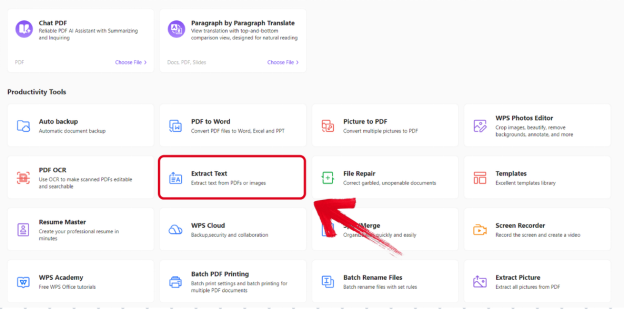
Editorial check: The Productivity Tools menu shows where proofreading tools live in Writer—it does not prove a proofread document body alone. Always review content before sharing.
Proofread Spelling and Grammar With AI Spell Check
WPS Academy documents AI Spell Check as part of WPS AI Writer productivity tools for catching spelling and grammar issues. AI Spell Check presents suggestions users can review and accept; WPS Academy notes AI-assisted editing may still require manual editing and an internet connection for AI processing.
WPS AI Spell Check highlights mistakes in the document and lists errors in a side panel with suggestions per WPS Academy.
To run AI Spell Check proofreading:
Open your draft in WPS Writer.
Open Productivity Tools (or the WPS AI Tab).
Select Spell Check (or AI Spell Check → Choose File → select document → Open per WPS Academy).
Review each suggestion in the side panel—Accept All or review individually per WPS Academy.
Skip or edit suggestions for technical terms, product names, and proper nouns.
Re-read the full paragraph after bulk accepts to catch context errors Spell Check may miss.
Run Spell Check after major drafting or Refine passes and before you export or share. Spell Check catches language errors—it does not verify facts, figures, dates, or names.
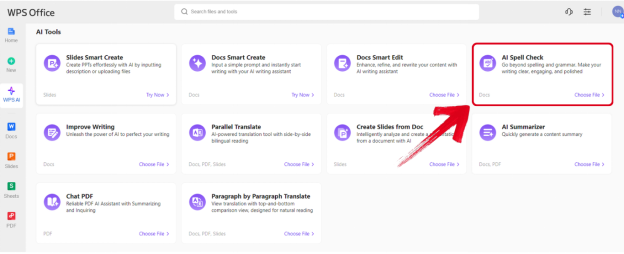
Editorial check: Spell Check may flag technical terms incorrectly. Human review of facts and figures remains mandatory.
Polish Tone and Clarity With AI Refine
AI Refine reviews and enhances selected content for improved structure and professional tone per WPS Academy. WPS Academy recommends selecting specific sentences rather than entire documents, and warns Refine may change original tone on context-sensitive text such as quotes, legal disclaimers, or brand voice passages.
To use AI Refine for clarity polish:
Open WPS Office → WPS AI Tab → Improve Writing → Choose File → select document → Open per WPS Academy—or select text directly in an open document.
Select the sentence you want to polish—not the whole document.
Choose a tone option in the Refine window.
Review suggestions and choose Accept, Redo, or Discard per WPS Academy.
Re-read accepted text against your source materials before moving to the next section.
Use Refine after Spell Check on sections that read awkwardly but are factually correct, or when tone shifts between sections after multiple authors or paste operations.
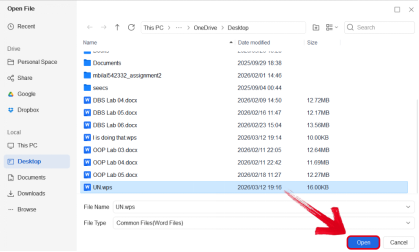
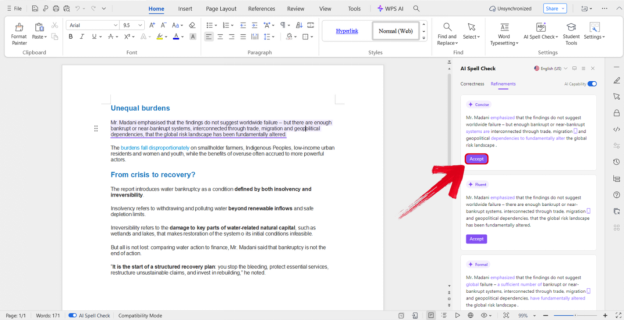
Editorial check: Refine may change original tone or subtle meaning. Re-read every accepted suggestion—especially on context-sensitive passages.
When to Use Spell Check vs Refine
Not every proofreading problem needs the same tool. Use this decision guide:
| Situation | Use this tool | Why |
|---|---|---|
| Typos, grammar errors, punctuation | AI Spell Check | Catches language-level mistakes across the full draft |
| Awkward phrasing after Spell Check | AI Refine on selected sentences | Improves clarity without rewriting the whole document |
| Inconsistent tone between sections | AI Refine with tone selection | Aligns voice on specific passages |
| Facts, figures, or technical accuracy | Human review | Neither tool verifies content accuracy |
| Quotes, legal text, brand voice | Human review first | Refine may change original tone on sensitive passages |
Recommended order: Run Spell Check on the full draft first, then Refine only on sentences that still read poorly. Finish with a human proofread pass for facts and terminology.
When Human Proofreading Still Matters
AI document proofreading accelerates common fixes, but some tasks still require human judgment:
| Situation | Why human proofreading wins |
|---|---|
| Facts, figures, and dates | AI does not verify accuracy—only language |
| Technical terminology | Spell Check may flag valid domain terms |
| Legal, medical, or compliance text | Tone changes from Refine can alter meaning |
| Complex tables and styles | External paste or chat rewrite often breaks layout |
| Brand voice and quotes | Refine may flatten distinctive tone |
| Professional copyediting | AI proofreading does not replace certified editors |
Treat AI proofreading as a first pass—not a publication-ready guarantee.
Tips: Technical Terms, AI Limits, and Internet Requirement
Built-in AI proofreading saves time—but output still requires your judgment:
Fact-check every claim — AI may invent statistics, dates, or names.
Review Spell Check suggestions one section at a time — skip false positives on technical terms.
Scope AI Refine to selected sentences — protect context-sensitive tone.
Confirm AI limits — check live WPS pricing for current AI usage limits before heavy proofreading sessions.
Internet required — AI processing requires an internet connection per WPS Academy guidance.
Verify file compatibility — after proofreading, test
.docxand PDF on target files (WPS-F-003).Manual editing expected — AI results may still require manual editing even after Refine and Spell Check.
Do not over-scope proofreading — AI does not replace professional editing, legal/medical certification, or flawless error-free output.
Brief Note: AI Proofreading in Microsoft Word (Plan-Gated Context)
Word, Excel, and PowerPoint for the web are free with a Microsoft account and include 5 GB OneDrive storage per Microsoft's free web page. That tier is useful context—but full Copilot proofreading/drafting assistance in Word typically requires paid or eligible Microsoft 365/Copilot plans, not the personal free web tier alone.
Document proofreading without Copilot access remains manual for AI-assisted spelling and tone polish unless users adopt an integrated proofreading path elsewhere—such as WPS AI Writer inside WPS Office.
Editorial check: This guide focuses on the WPS integrated document proofreading workflow. Do not publish a Copilot vs WPS feature matrix or imply Copilot is unlimited on the free web tier.
FAQ
What is an AI document proofreader?
An AI document proofreader helps review drafts for spelling and grammar errors, unclear phrasing, and inconsistent tone inside your document editor—using integrated Spell Check and Refine rather than external chat copy-paste.
How do I proofread a document with AI in WPS Office?
Open your draft in WPS Writer → Productivity Tools → run AI Spell Check for spelling/grammar → select sentences and run AI Refine for tone/clarity → human review → save .docx and verify compatibility.
Does AI Spell Check fix every error?
No. AI Spell Check presents suggestions you review and accept; it may flag technical terms incorrectly and does not verify facts or figures. Human review remains mandatory.
Can AI Refine change my document's meaning?
Yes. AI Refine may change original tone on context-sensitive text. Select specific sentences, review every suggestion, and use Accept, Redo, or Discard carefully.
Do I need the internet for WPS AI document proofreading?
Yes. An internet connection is required for AI processing per WPS Academy guidance.
Can I use this proofreading workflow on mobile?
WPS is listed for Windows, macOS, Linux, iOS, and Android, but step-by-step proofreading in this guide is sourced for desktop Writer. Do not claim an identical mobile suite-AI proofreading workflow without Academy proof.
Are there AI limits on the free tier?
Confirm AI limits on live WPS pricing before relying on unlimited proofreading. Do not claim unlimited AI on any free tier without a current pricing recheck.
Does WPS support DOC and DOCX after proofreading?
WPS AI Writer supports common formats like DOC and DOCX per WPS Academy FAQ. Verify layout on target files after proofreading before sharing (WPS-F-003).
Sources and Last Reviewed
| Source | Role |
|---|---|
| WPS Academy — AI Document Generator Guide | Spell Check, Refine, Productivity Tools |
| WPS Academy — What Is WPS Office | Suite positioning |
| WPS Pricing | Microsoft file format compatibility; AI limit recheck |
| Microsoft 365 Free for the Web | Web tier and Copilot plan context |
Last reviewed: 2026-07-01