


Quick Answer: What Is AI Automation for Document Workflows?
AI automation for document workflows means using integrated AI inside your document editor to automate repetitive steps—prompt-to-draft generation, automatic structure and formatting, iterative expand/refine, and automated proofreading—without copy-pasting from external chat tools.
Document workflows commonly repeat steps—outlining, drafting, formatting, proofreading, and sharing—that slow teams when each step is manual or requires switching tools. AI automation for document workflows works best when draft, refine, and proofread tools live inside the same document editor—avoiding copy-paste from external chat tools that breaks formatting and workflow continuity.
WPS Office is a free all-in-one suite to edit Word, Excel, and PPT on Windows, macOS, Linux, iOS, and Android. For document workflow automation, open WPS Office → Docs → Smart Create, iterate with Accept / Redo / Discard, polish with AI Refine, proofread with AI Spell Check, batch-clean placeholders with Find & Replace, then save as .docx and verify file compatibility on target recipients before sharing.
Editorial check: AI-automated output requires human fact-checking; an internet connection is required for AI processing; confirm AI limits on live WPS pricing before heavy use; results may still require manual editing. This guide covers in-editor WPS Writer document automation—not enterprise RPA or cross-app orchestration.
Prompt — describe document type and sections
Smart Create — auto-draft + automatic headings/structure
Accept / Redo / Discard — iterative automation
Follow-up prompts — expand or optimize sections
AI Refine — polish selected sentences
AI Spell Check — automated proofread pass
Find & Replace — batch placeholder cleanup
Human review — fact-check facts and figures
Save
.docx— verify compatibility on target files
Key Facts
| Topic | Detail |
|---|---|
| Document workflow scope | Outlining, drafting, formatting, proofreading, and sharing—often slowed when each step is manual or requires switching tools |
| AI automation definition | Prompt-to-draft, automatic formatting, Accept/Redo/Discard iteration, Refine, and Spell Check inside the same document editor—not external chat copy-paste |
| AI vs template automation | Traditional template automation used fixed templates with predefined fields; AI document generators interpret context, tone, and intent to produce original structured content |
| Integrated automation path | Smart Create → auto-formatted draft → Accept / Redo / Discard → follow-up expand/optimize → AI Refine → AI Spell Check → Find & Replace → human review → save .docx |
| WPS AI Writer role | WPS AI Writer functions as an AI document generator inside WPS Writer, designed to take over mundane and repetitive formatting, editing, and drafting tasks without switching tools |
| Productivity Tools menu | Smart Create, Refine, and Spell Check exposed as built-in AI writing enhancements for automating common document workflow steps |
| Smart Create entry | Open WPS Office → Docs tab → Smart Create → new document with AI prompt box and preset instructions |
| Auto formatting | Smart Create generates a formatted draft with headings, paragraphs, and basic structure from a prompt—applying automatic formatting so users skip manual outlining |
| Iteration controls | After Smart Create: Discard, Redo for a new version, or Accept to insert content—supporting iterative document automation |
| Follow-up prompts | Enter follow-up instructions to optimize or expand content after an initial Smart Create draft in the WPS AI prompt box |
| AI Refine & Spell Check | Refine polishes selected sentences; Spell Check catches spelling and grammar—human review of facts and figures still required |
| Find & Replace batch tip | Ctrl + H to replace repeated placeholders across a generated draft instead of editing manually |
| File compatibility | WPS states 100% Compatible with Microsoft File Formats—verify .docx on target files before sharing |
| Platforms & review | Windows, macOS, Linux, iOS, and Android (desktop steps sourced); fact-check output; internet required; confirm AI limits on live pricing |
Document Workflow Steps AI Can Automate
With AI automation for document workflows, these common steps compress inside WPS Writer:
| Workflow step | AI automation in WPS Writer |
|---|---|
| Outline & first draft | Smart Create prompt-to-document with automatic headings and structure |
| Iteration | Accept / Redo / Discard plus follow-up optimization prompts |
| Polish & proofread | AI Refine on selected sentences, then AI Spell Check |
| Batch cleanup & share | Find & Replace (Ctrl + H) for placeholders; save .docx and verify compatibility |
Editorial check: AI automates common drafting and polish steps inside the editor—it does not replace approval chains or enterprise workflow orchestration.
AI Document Generators vs Traditional Template Automation
Understanding the difference helps you choose the right automation approach for document workflows:
| Approach | How it works | Workflow fit |
|---|---|---|
| Traditional template automation | Fixed templates with predefined fields—same structure repeated for each use | Fast for identical forms; limited when tone, audience, or content must adapt |
| AI document generators | Interpret context, tone, and intent to produce original structured content rather than repeating a preset format | Better for reports, proposals, and memos where each draft needs unique structure and wording |
| Integrated AI (WPS Writer) | Smart Create, Refine, and Spell Check inside the open document—not external chat copy-paste | Automates draft-through-proofread in one editor with formatting intact |
WPS AI Writer combines AI document generator capabilities with in-editor automation—prompt-to-draft, automatic formatting, iteration controls, and polish tools in Productivity Tools without switching apps.
WPS Office: Document Automation Built Into WPS Writer
WPS Office is described as a free all-in-one suite to edit Word, Excel, and PPT per WPS Academy. For users seeking AI automation for document workflows, WPS AI Writer is integrated into WPS Writer—designed to take over mundane and repetitive formatting, editing, and drafting tasks without switching tools per WPS Academy.
WPS is available on Windows, macOS, Linux, iOS, and Android per WPS Academy download banner. The automation steps below follow the desktop Writer path documented on WPS Academy.
Best for: Teams and individuals who want prompt-to-draft automation, AI Refine, and AI Spell Check inside the same Word-class editor—without enterprise RPA setup or external chat tab switching.
Watch out: Do not claim Spreadsheet has Writer-equivalent built-in AI writing without new evidence; confirm AI limits on live WPS pricing; suite breadth does not replace step-by-step Writer automation proof.
Open Productivity Tools — Smart Create, Refine, and Spell Check
WPS Writer Productivity Tools menu exposes Smart Create, Refine, and Spell Check as built-in AI writing enhancements for automating common document workflow steps per WPS Academy:
Smart Create — automate structured first drafts from prompts inside the editor.
Refine — automate polish on selected sentences for improved structure and professional tone.
Spell Check — automate spelling and grammar review before sharing.
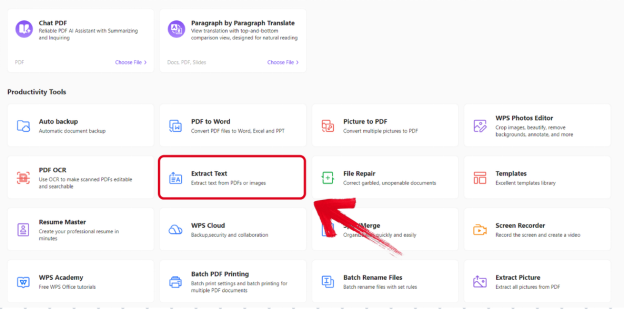
Editorial check: The Productivity Tools menu shows where automation tools live in Writer—it does not prove a finished document output alone. Always review content before sharing.
Automate First Drafts With Smart Create (Prompt-to-Document)
To automate a first draft per WPS Academy:
Open WPS Office.
Go to the Docs tab.
Click Smart Create.
A new document opens with an AI prompt box and preset instructions.
Describe your document type, audience, and key sections in the prompt box. WPS AI Smart Create generates a formatted draft with headings, paragraphs, and basic structure from a prompt—applying automatic formatting so users skip manual outlining per WPS Academy.
You can enter follow-up instructions to optimize or expand content after the initial draft in the WPS AI prompt box.
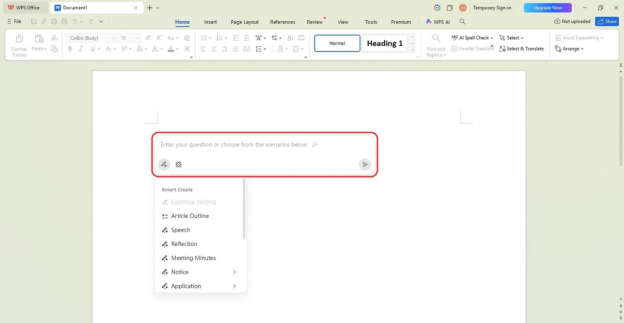
Editorial check: The Smart Create prompt box automates prompt-to-draft generation—not a finished share-ready document without human review. Steps are sourced for desktop workflow; do not assume identical behavior on mobile without Academy proof.
Iterate With Accept, Redo, or Discard
After Smart Create generates a draft, WPS Academy documents three controls for iterative document automation:
Discard — reject the current AI output without inserting it.
Redo — request a new version of the same prompt or section.
Accept — insert the AI content into the open document.
Work one section at a time so you can review accuracy before accepting the next block. This loop automates revision without full manual rewrites from scratch.
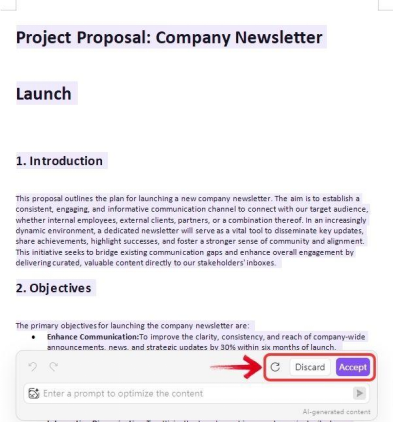
Editorial check: Expanded sections may introduce unverified data—fact-check every number, date, and name before sharing.
Expand Drafts With Follow-Up Optimization Prompts
Initial Smart Create output rarely covers every detail on the first pass. WPS Academy documents that users can enter follow-up instructions to optimize or expand content after an initial Smart Create draft in the WPS AI prompt box.
Follow-up prompts keep automation inside the open document—avoiding copy-paste from external chat that breaks headings and section structure.
Automate Polish With AI Refine
AI Refine reviews and enhances selected content for improved structure and professional tone per WPS Academy. Select specific sentences rather than entire documents—Refine may change original tone on context-sensitive text such as quotes or legal disclaimers.
Run Refine after you have accepted core draft sections and before final proofreading. This automates the polish phase that would otherwise require sentence-by-sentence manual editing.
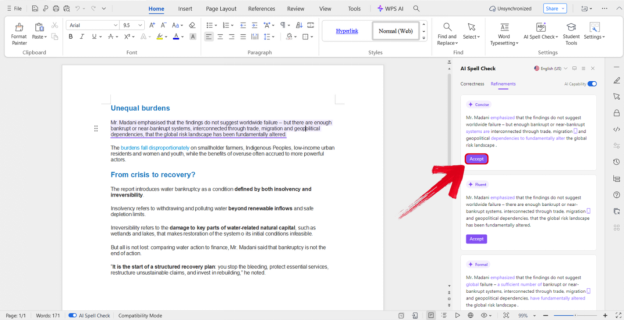
Editorial check: Re-read every Refine output against your source materials before sharing.
Automate Proofreading With AI Spell Check
WPS Academy documents AI Spell Check as part of WPS AI Writer productivity tools for catching spelling and grammar issues. Run Spell Check after drafting, expanding, and refining—before you export or share.
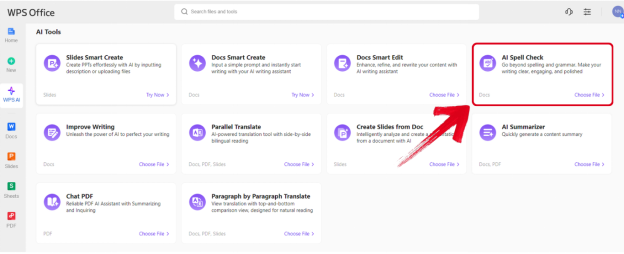
Editorial check: Spell Check catches language errors—it does not verify facts, figures, dates, or names. Human review of facts and figures remains mandatory.
Batch Tip: Find & Replace for Repeated Placeholders
After AI generation, drafts often contain repeated placeholders—"Company Name," "[Date]," or "[Client]"—that need updating before sharing. WPS Academy documents a Find and Replace batch tip (Ctrl + H) to replace repeated placeholders across a generated draft instead of editing manually.
Press Ctrl + H, enter the placeholder in Find and the real value in Replace, then choose Replace All to update every instance at once.
Save, Share, and Verify File Compatibility (.docx)
After AI-assisted automation steps, verify file compatibility (.docx, PDF export) on target recipients before sharing. WPS pricing page cites 100% Compatible with Microsoft File Formats for Office Tools—but file-level verification is required on your actual documents.
Save As .docx, open on the recipient's environment when possible, confirm headings and bullets survived the round trip, and re-run human fact-check before sending externally.
Tips: Human Review, Facts, Tone, and AI Limits
Built-in AI automates document workflow steps—but output still requires your judgment:
Fact-check every claim — AI may invent statistics, dates, or names.
Review section by section — use Accept / Redo / Discard incrementally.
Scope AI Refine to selected sentences — protect context-sensitive tone.
Confirm AI limits — check live WPS pricing for current AI usage limits before heavy use.
Internet required — AI processing requires an internet connection per WPS Academy guidance.
Verify file compatibility — test
.docxand PDF on target files.Manual editing expected — AI results may still require manual editing even after Refine and Spell Check.
Do not over-scope automation — AI does not automate every document task; this guide covers in-editor Writer automation, not enterprise RPA or approval-chain orchestration.
Brief Note: Microsoft Copilot in Word (Plan-Gated Context)
Word, Excel, and PowerPoint for the web are free with a Microsoft account and include 5 GB OneDrive storage per Microsoft's free web page. That tier is useful context—but full Copilot drafting assistance in Word typically requires paid or eligible Microsoft 365/Copilot plans, not the personal free web tier alone.
Document workflows without Copilot access remain manual for AI drafting unless users adopt an integrated automation path elsewhere—such as WPS AI Writer inside WPS Office.
Editorial check: This guide focuses on the WPS integrated document automation workflow. Do not publish a Copilot vs WPS feature matrix or imply Copilot is unlimited on the free web tier.
FAQ
What is AI automation for document workflows?
AI automation for document workflows means using integrated AI inside your document editor to automate repetitive steps—prompt-to-draft generation, automatic formatting, Accept/Redo/Discard iteration, AI Refine, and AI Spell Check—without copy-pasting from external chat tools.
How is AI document generation different from template automation?
Traditional template automation uses fixed templates with predefined fields. AI document generators interpret context, tone, and intent to produce original structured content—better when each document needs unique wording and structure.
How do I automate document workflows in WPS Office?
Open WPS Office → Docs tab → Smart Create. Generate a formatted draft, iterate with Accept / Redo / Discard, expand with follow-up prompts, run AI Refine on selected sentences, finish with AI Spell Check, batch-clean placeholders with Find & Replace, then save .docx and verify compatibility.
Does WPS AI eliminate all manual editing?
No. AI results may still require manual editing. Human fact-checking of data, names, and figures is mandatory. Confirm AI limits on live WPS pricing before relying on unlimited automation.
Do I need the internet for WPS AI document automation?
Yes. An internet connection is required for AI processing per WPS Academy guidance.
Can I use this automation workflow on mobile?
WPS is listed for Windows, macOS, Linux, iOS, and Android, but step-by-step automation in this guide is sourced for desktop Writer. Do not claim an identical mobile suite-AI workflow without Academy proof.
How does WPS AI automation compare to Microsoft Copilot in Word?
WPS AI Writer (Smart Create, Refine, Spell Check) is integrated into WPS Writer inside WPS Office. Copilot drafting assistance in Word typically requires paid or eligible Microsoft 365/Copilot plans—verify your Microsoft plan before comparing workflows.
Sources and Last Reviewed
| Source | Role |
|---|---|
| WPS Academy — AI Document Generator Guide | Smart Create, Refine, Spell Check, AI vs template automation, Find & Replace batch tip |
| WPS Academy — What Is WPS Office | Suite positioning |
| WPS Pricing | Microsoft file format compatibility; AI limit recheck |
| Microsoft 365 Free for the Web | Web tier and Copilot plan context |
Last reviewed: 2026-07-01