


Quick Answer: What Is an AI-Assisted Content Creation Suite?
An AI-assisted content creation suite is an integrated office platform—documents, spreadsheets, presentations, and PDF—with AI built into everyday apps so you draft, polish, proofread, convert image text into editable copy, and build slide content without switching to standalone content AI tools.
Integrated suite AI differs from standalone content AI apps (browser chat tabs, single-purpose AI writers): when AI lives inside Writer and Presentation, formatted drafts and slide outlines stay in place and you avoid copy-paste breakage between a content AI tool and office files.
WPS Office is a free all-in-one suite to edit Word, Excel, and PPT on Windows, macOS, Linux, iOS, and Android. For AI-assisted content creation, use WPS AI Writer in Writer (Smart Create, Refine, Spell Check, Extract Text) and WPS AI Slides in Presentation (Create With AI, Create From File), iterate with Accept / Redo / Discard, then save as .docx and verify file compatibility on target recipients before sharing.
Editorial check: AI-assisted content creation output requires human fact-checking; an internet connection is required for AI processing; confirm AI limits on live WPS pricing before heavy use; AI results may still require manual editing. This guide covers Writer and Presentation AI content creation inside WPS Office—not enterprise deployment, Spreadsheet AI content parity, or multi-vendor content-tool roundups.
Smart Create draft — formatted headings and paragraphs in WPS Writer
Accept / Redo / Discard — iterate without restarting from scratch
Follow-up expand — optimize or expand sections via prompt
AI Refine — polish selected sentences
AI Spell Check — reduce manual proofread passes
Extract Text (OCR) — optional: skip retyping scanned or image content
Presentation: AI Slides — Create With AI or Create From File
Human review — verify facts, tone, and technical terms
Save
.docx— verify compatibility on target files
Key Facts
| Topic | Detail |
|---|---|
| Suite content-creation definition | Integrated office platform with AI in everyday apps to draft, polish, proofread, convert image text, and build slide content without standalone content AI tools |
| Integrated vs standalone content AI | AI inside Writer and Presentation keeps formatted drafts in place; standalone content AI apps require paste-back and risk broken styles and structure |
| Content-creation pillars | Prompt-to-draft, AI refine/polish, spell/grammar check, image-to-text OCR, and AI presentation generation |
| WPS AI Writer | AI document generator inside WPS Writer for drafting, formatting, editing, OCR, and proofreading content without switching tools |
| Productivity Tools menu | Smart Create, Refine, Spell Check, and Extract Text reduce manual drafting, retyping, editing, and proofreading |
| Smart Create workflow | Docs tab → Smart Create → AI prompt box → formatted draft with headings and structure |
| Iteration | Discard, Redo, or Accept; follow-up instructions to optimize or expand content |
| AI Refine | Enhances selected sentences; may change original tone on brand-sensitive copy |
| Extract Text (OCR) | Upload image, preview extracted text—eliminates typing out everything manually; high-quality images required |
| WPS AI Slides | Create With AI, Create From File, Beautify Single Slide, Change Theme |
| File compatibility | 100% Compatible with Microsoft File Formats—verify .docx on target files; supports DOC and DOCX |
| Platforms & review | Windows, macOS, Linux, iOS, and Android; internet required; confirm AI limits on live pricing |
| Microsoft context | Word for the web free with a Microsoft account and 5 GB OneDrive—full Copilot drafting typically requires paid or eligible M365/Copilot plans |
Content Creation Pillars: Draft, Polish, Proofread, OCR Input, and Slides
Core content-creation pillars in an AI-assisted suite include prompt-to-draft document creation, AI refine/polish, spell/grammar check, image-to-text OCR for content input, and AI presentation generation per WPS Academy documentation.
| Pillar | WPS tool | Content-creation job |
|---|---|---|
| Draft content | Smart Create | Describe the content instead of manually outlining every section |
| Polish copy | AI Refine | Improve structure and professional tone on selected sentences |
| Proofread content | AI Spell Check | Catch spelling and grammar without line-by-line manual passes |
| OCR content input | Extract Text | Convert image content into editable copy |
| Build presentation content | WPS AI Slides | Generate deck content from topics or existing documents |
WPS Academy notes AI can make simple word processing tools far more capable, helping users move from separate outlining, drafting, formatting, and editing steps toward a review-and-refine content workflow.
Integrated Suite AI vs Standalone Content AI Tools and Copy-Paste
| Approach | How suite content creation works | Risk |
|---|---|---|
| Integrated (WPS Writer + Presentation) | Smart Create, Refine, Spell Check, Extract Text, and AI Slides run inside open office files | Lower formatting loss; in-place review of each AI suggestion |
| Standalone content AI app + paste | Generate in a browser chat or single-purpose AI writer, paste into Word/Writer/PPT | Broken styles, tables, headers, and section numbering |
| External export/import loop | Draft in a standalone tool, export elsewhere | Extra steps; content structure may not survive transfer |
When AI lives inside Writer and Presentation, you stay in one all-in-one suite instead of juggling a standalone content AI app and office files.
WPS Office: All-in-One AI Content Creation Suite Overview
WPS Office is described as a free all-in-one suite to edit Word, Excel, and PPT per WPS Academy. WPS AI Writer integrates into WPS Writer for drafting, formatting, editing, OCR, and proofreading content without switching tools. WPS AI Slides adds presentation content creation within the same suite on Windows, macOS, Linux, iOS, and Android.
Best for: Users who want document and presentation content creation with integrated AI inside one office platform—without standalone content AI app switching.
Watch out: A suite overview shows app breadth, not finished AI content output. Confirm AI limits on live WPS pricing; AI does not eliminate all manual editing, flawless OCR, or Spreadsheet AI content parity without separate Academy proof.
Open Productivity Tools — Smart Create, Refine, Spell Check, Extract Text
WPS Writer Productivity Tools menu exposes Smart Create, Refine, Spell Check, and Extract Text as built-in AI writing enhancements for content creation—reducing manual drafting, retyping, editing, and proofreading per WPS Academy.
Smart Create — describe your content instead of manually outlining and writing every section.
Refine — polish selected sentences for structure and professional tone.
Spell Check — catch spelling and grammar without manually proofreading every line.
Extract Text — convert image content into editable copy so you skip retyping hard copies.
Open Productivity Tools (or the WPS AI Tab) in WPS Writer to reach these tools.
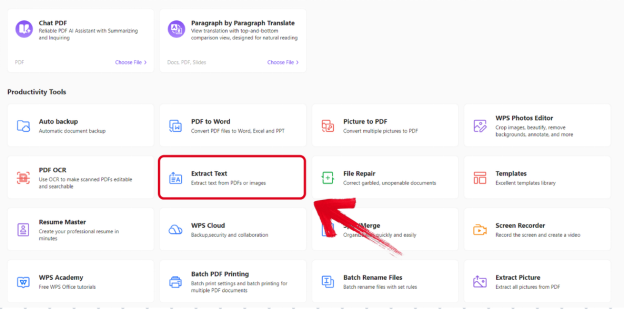
Editorial check: The menu shows where AI content tools live in Writer—it does not prove finished publishable content alone. Always review before sharing.
Create Content Faster With Smart Create (Prompt-to-Draft)
To start new written content per WPS Academy:
Open WPS Office → Docs tab → Smart Create.
A new document opens with an AI prompt box and preset instructions.
Describe content type, audience, and key sections.
Smart Create generates a formatted draft with headings, paragraphs, and basic structure from your natural-language prompt.
Enter follow-up instructions to optimize or expand content after the initial draft.
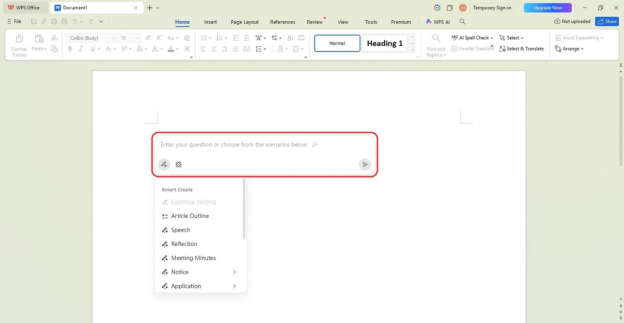
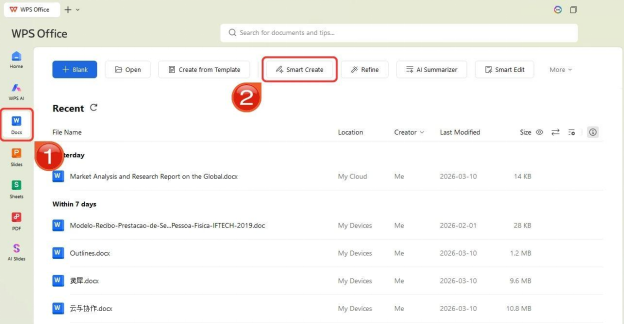
Editorial check: Smart Create may still require manual editing. Do not claim the prompt box alone eliminates all keystrokes or human review. Steps are sourced for desktop Writer workflow.
Iterate With Accept, Redo, or Discard
After Smart Create generates a draft, WPS Academy documents three controls:
Discard — reject output without inserting it.
Redo — request a new version from the same prompt.
Accept — insert the AI content into the document.
This supports iterative content refinement without restarting from scratch—faster than deleting and retyping entire sections manually.
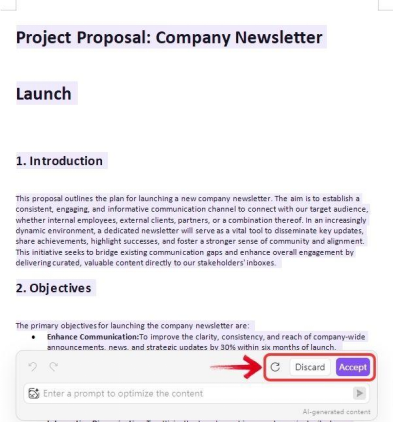
Editorial check: Iteration controls speed refinement—they do not replace human fact-checking of names, dates, and claims.
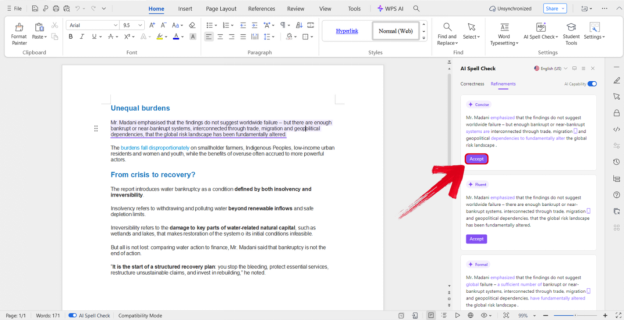
Polish Copy With AI Refine
AI Refine reviews and enhances selected content for improved structure and professional tone per WPS Academy. WPS Academy recommends selecting specific sentences rather than entire documents, and warns Refine may change original tone on brand-sensitive copy.
Select specific sentences you want to improve.
Open Refine from Productivity Tools.
Review suggestions in the Refine window.
Choose Accept, Redo, or Discard per suggestion.
Re-read accepted text against your source materials.
Editorial check: Refine reduces manual polish work—it does not guarantee meaning stays identical on sensitive passages.
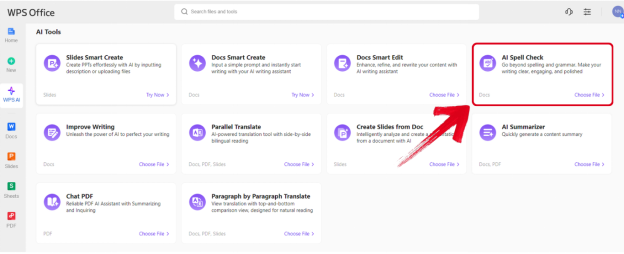
Proofread Content With AI Spell Check
WPS Academy documents Spell Check in the Productivity Tools menu as part of the suite content-creation pillar alongside Refine. AI Spell Check catches spelling and grammar so you spend less time on line-by-line error hunts.
Open your draft in WPS Writer.
Open Productivity Tools (or the WPS AI Tab).
Select Spell Check.
Review each suggestion—accept fixes that are correct; skip suggestions for technical terms and proper nouns.
Re-read paragraphs after bulk accepts.
Spell Check catches language errors—it does not verify facts, figures, dates, or names. Human review of facts and figures remains mandatory.
Turn Image Text Into Editable Content With Extract Text (OCR)
Extract Text lets users upload an image and preview extracted text for copy into documents per WPS Academy. WPS Academy states this eliminates typing out everything manually from hard copies.
Open Productivity Tools in WPS Writer.
Select Extract Text.
Upload a clear image of the source document.
Preview the extracted text.
Copy accepted text into your draft and fix OCR errors manually.
Use high-quality images for best results—unclear images or handwriting may fail or produce errors that still require manual correction.
Editorial check: Do not imply flawless OCR replaces all manual correction on handwriting or low-quality scans.
Create Presentation Content With WPS AI Slides
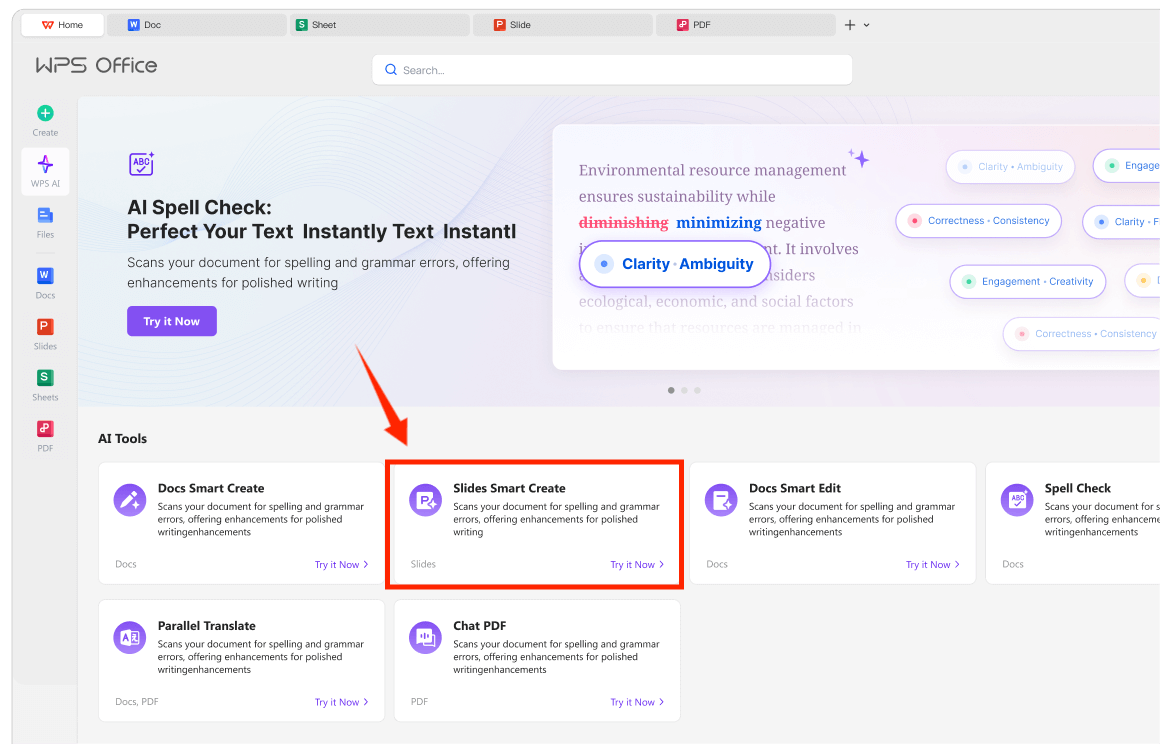
WPS AI Slides supports Create With AI (topic keywords generate a presentation outline and slides) and Create From File (upload a document to extract key points into a structured PPT) per WPS Academy—presentation content creation within the same office suite.
WPS AI Slides also documents Beautify Single Slide and Change Theme for post-generation polish—helping users refine presentation look without manual layout work.
Open WPS Presentation.
Choose Create With AI and enter topic keywords, or Create From File and upload a source document.
Review the generated outline and slides.
Use Beautify Single Slide or Change Theme to polish individual slides.
Human-review facts, branding, and speaker notes before presenting.
Editorial check: AI Slides accelerates deck content creation—it does not replace human fact-checking or guarantee publication-ready output without review.
Work Across Devices (Windows, Mac, Linux, iOS, Android)
WPS is available on Windows, macOS, Linux, iOS, and Android per WPS Academy download banner. The Writer and Presentation AI content-creation steps in this guide follow the desktop path documented on WPS Academy.
Editorial check: Desktop steps may differ on mobile—do not claim mobile suite-AI workflow without Academy proof for your device.
Save, Share, and Verify File Compatibility (.docx)
After AI-assisted content creation, verify file compatibility (.docx, PDF export) on target recipients before publishing or sharing. WPS pricing page cites 100% Compatible with Microsoft File Formats for Office Tools—verify against target files before migration. WPS AI Writer supports common formats like DOC and DOCX per WPS Academy FAQ.
Bonus tip: Find & Replace (Ctrl + H) lets users batch-replace repeated placeholders (e.g., "Company Name") instead of editing each instance manually—documented as a bonus tip after Smart Create per WPS Academy.
Tips: Human Review, Facts, Tone, and AI Limits
Fact-check names, dates, statistics, and technical claims.
Re-read Refine output on context-sensitive passages—Refine may change original tone.
Verify OCR text from Extract Text—unclear images or handwriting may fail.
Confirm AI limits on live WPS pricing before heavy Smart Create or AI Slides use.
Ensure an internet connection for AI processing.
Verify
.docxlayout on target files before sharing per WPS compatibility guidance.
Brief Note: Microsoft Copilot in Word (Plan-Gated Context)
Word, Excel, and PowerPoint for the web are free with a Microsoft account and include 5 GB OneDrive storage per Microsoft's free web page. Full Copilot drafting assistance in Word typically requires paid or eligible Microsoft 365/Copilot plans—content-creation tasks without Copilot access remain largely manual. Verify your plan before comparing to WPS integrated suite AI.
FAQ
Do I need the internet for WPS AI content creation tools?
Yes. An internet connection is required for AI processing per WPS Academy guidance.
Can I use WPS AI on mobile for suite content creation?
WPS runs on iOS and Android, but the step-by-step workflow in this guide follows desktop Academy documentation. Mobile UI and menus may differ.
Is WPS AI unlimited on the free tier?
Do not assume unlimited AI writing on any free tier. Confirm AI limits on live WPS pricing before heavy use.
What is the difference between an AI-assisted content creation suite and a standalone AI writer?
An AI-assisted content creation suite embeds AI inside Writer and Presentation so drafts and slide content stay formatted in place. A standalone AI writer requires copy-paste back into office files, which risks broken styles and structure.
Does WPS AI Slides replace manual presentation design entirely?
No. Create With AI and Create From File accelerate outline and slide generation, but human review of facts, branding, and layout remains essential.
Does Extract Text work on handwriting?
Unclear images or handwriting may fail or produce errors requiring manual correction. Use high-quality images and always preview extracted text before inserting.
Should I verify files before sending to Microsoft Word users?
Yes. WPS states 100% Compatible with Microsoft File Formats—still verify .docx output on target files before sharing.
Does this guide cover Spreadsheet AI or WPS Docs co-editing?
No. Scope is Writer AI content tools and Presentation AI Slides documented on WPS Academy.
Sources and Last Reviewed
Last reviewed: 2026-07-01
WPS AI document generator guide — WPS AI Writer content tools, Smart Create, Refine, Spell Check, Extract Text
WPS AI Slides guide — WPS AI Slides presentation content creation
What is WPS Office — Suite positioning
WPS pricing — Microsoft format compatibility; AI limit recheck
Microsoft 365 free for the web — Brief Copilot plan context