'%3e%3cstop%20offset='0'%20stop-color='%23391ef0'/%3e%3cstop%20offset='1'%20stop-color='%235dabff'/%3e%3c/linearGradient%3e%3clinearGradient%20id='icon-256-logo-ai-v1-g1'%20x1='0'%20y1='0.5'%20x2='1'%20y2='0.5'%20gradientTransform='matrix(-1.1603561542763454%20-2.029595748722483e-14%201.6849538795808504e-15%20-1.0775765482488853%201.1221874503325953%200.5387882741244623)'%3e%3cstop%20offset='0'%20stop-color='%2337b2fc'/%3e%3cstop%20offset='1'%20stop-color='%232052fc'/%3e%3c/linearGradient%3e%3clinearGradient%20id='icon-256-logo-ai-v2-g2'%20x1='0'%20y1='0.5'%20x2='1'%20y2='0.5'%20gradientTransform='matrix(-0.819979740677445%20-0.8603650957330012%200.7293719576520754%20-0.7384159647925725%200.45709711785879775%201.2338690791584153)'%3e%3cstop%20offset='0'%20stop-color='%23ffaa8f'/%3e%3cstop%20offset='1'%20stop-color='%23ee00ff'/%3e%3c/linearGradient%3e%3c/defs%3e%3cg%20transform='translate(0.19%203.56)'%3e%3cpath%20d='M9.6%200L14.8%200C15.09%200%2015.32%200.23%2015.32%200.52C15.32%200.59%2015.3%200.67%2015.27%200.74L8.2%2015.33C7.73%2016.28%206.77%2016.88%205.72%2016.88L0.52%2016.88C0.23%2016.88%200%2016.65%200%2016.36C0%2016.29%200.02%2016.21%200.05%2016.14L7.12%201.55C7.59%200.6%208.55%200%209.6%200Z'%20fill='url(%23icon-256-logo-ai-v0-g0)'%20fill-rule='nonzero'/%3e%3c/g%3e%3cg%20transform='translate(8.28%203.56)'%3e%3cpath%20d='M6.71%200C7%200%207.23%200.23%207.23%200.52C7.23%200.59%207.21%200.67%207.18%200.74L3.67%207.97L0%200.45C0.44%200.16%200.97%200%201.51%200L6.71%200Z'%20fill='url(%23icon-256-logo-ai-v1-g1)'%20fill-rule='nonzero'/%3e%3c/g%3e%3cg%20transform='translate(11.95%2011.53)'%3e%3cpath%20d='M8.5%201.55L11.71%208.17C11.83%208.42%2011.73%208.73%2011.47%208.86C11.4%208.89%2011.32%208.91%2011.24%208.91L6.05%208.91C4.99%208.91%204.03%208.31%203.57%207.36L0%200L6.02%200C7.08%200%208.04%200.6%208.5%201.55Z'%20fill='url(%23icon-256-logo-ai-v2-g2)'%20fill-rule='evenodd'/%3e%3c/g%3e%3c/svg%3e)


Use WPS Split and Merge Documents through 2 how-to topics: split documents and merge documents. Both topics are membership-related and can be opened from the How-to Index below.
How-to Index
| No. | Topic | Membership Requirement |
|---|---|---|
| 1 | 1. Split Documents | WPS Premium required |
| 2 | 2. Merge Documents | WPS Premium required |
How-to Guide
1. Split Documents
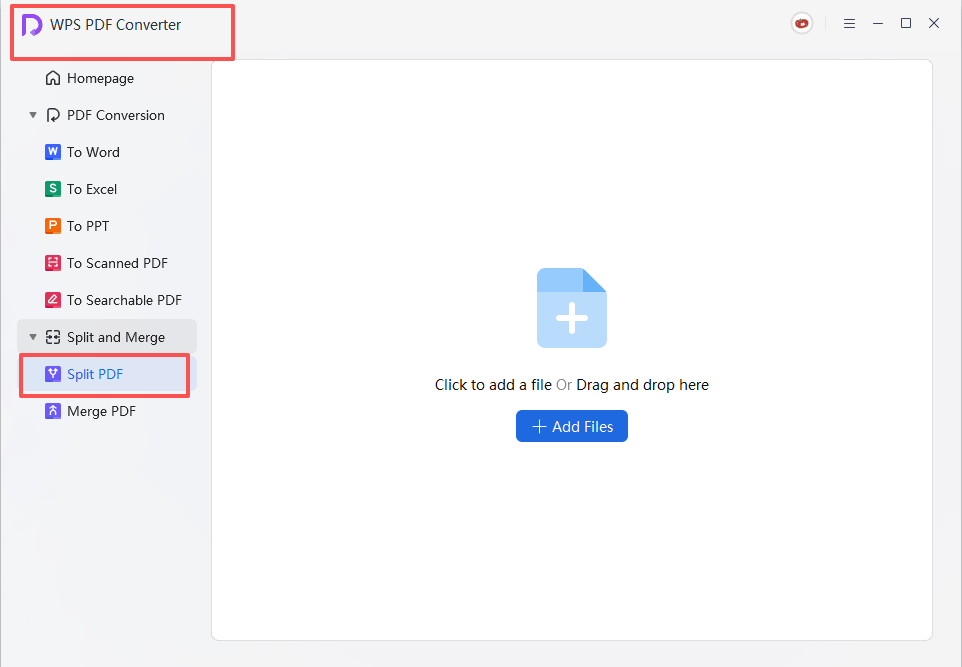
Entry: After opening a PDF file, select PDF Split.
- Open the WPS Office homepage and find the related PDF tool entry in the left panel.
- Drag a PDF file into the converter area, or add the file manually.
- Select PDF Split.
- Set the split range. You can split by start and end pages, export each page as one PDF, or choose specific pages.
- Click Split to export the result, then check the generated files in your local folder.
Success Criteria
- Interface result: You can see the split settings and complete the export action.
- Next action available: The split PDF files are generated in a local location.
Tips While Using
- Membership: This split and merge feature is membership-related, so confirm your account benefits before you start.
- File check: Review the page range before splitting so the required pages are not missed.
2. Merge Documents
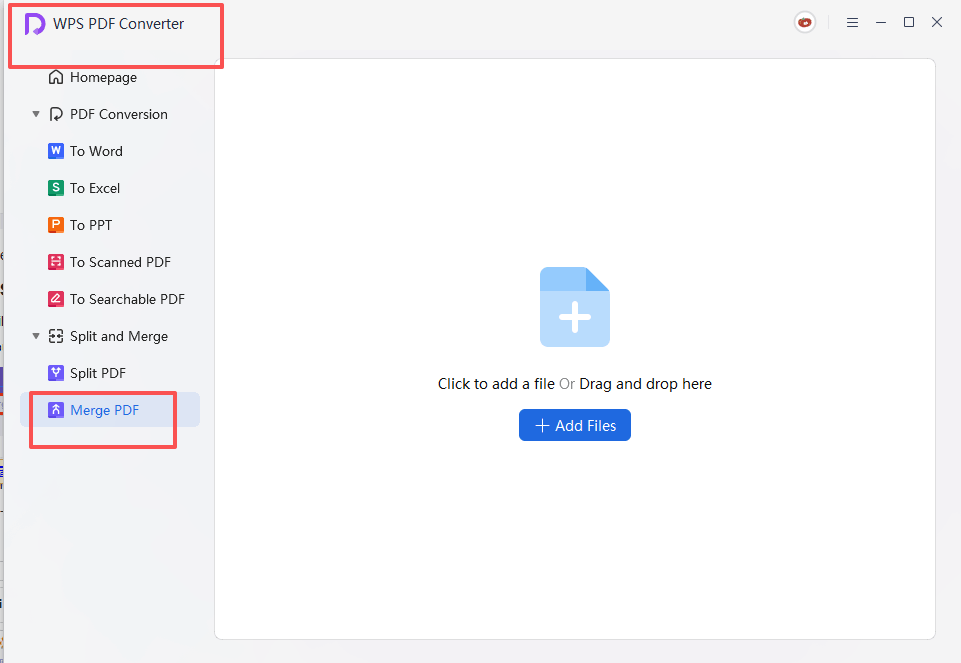
Entry: After opening a PDF file, select PDF Merge.
- Open the WPS Office homepage and find the related PDF tool entry in the left panel.
- Drag a PDF file into the converter area, or add the file manually.
- Select PDF Merge.
- Set the pages to combine and enter an output name if needed.
- Click Merge, then check the new PDF file in your local folder.
Success Criteria
- Interface result: You can see the merge settings and the output name area.
- Next action available: The merged PDF file is saved locally.
Tips While Using
- Membership: Merging documents is membership-related, so the process may not continue if the account does not have the required benefits.
- File order: Confirm the page combination order and output name before merging for easier archiving later.