


Quick Answer
To create a presentation from an outline, pick the path that matches your starting point. Path A: If you already have bullet points or a document, map sections to slides manually, or in WPS Presentation use Create From File or Generate Slides from Document, review or rearrange the AI-generated outline, then generate the deck. Path B: If you only have a topic, use Create With AI, enter keywords, review the outline, choose a template, and generate slides—then edit in WPS Presentation.
Key Facts
| Topic | Detail |
|---|---|
| Path A — outline or document | Manual section mapping or WPS Create From File / Generate Slides from Document — review or rearrange the AI outline, then generate the deck |
| Path B — topic or keywords | WPS Create With AI — enter keywords, review the AI outline, pick a template, and generate slides |
| Outline review | WPS AI Slides lets users review the AI-generated outline before slide generation |
| File compatibility | WPS states compatibility with .ppt, .pptx, and .pptm presentation files |
What Does "Create a Presentation From an Outline" Mean?
An outline is a structured list of section headings and bullet points that defines your talk before you design slides. Turning that outline into a presentation means mapping each section to one or more slides, adding titles and body text, choosing layouts, and refining visuals until the deck matches your message.
Step-by-Step: Turn an Outline Into Slides
Follow this general workflow to convert any outline into a slide deck:
Organize your outline into slide-sized sections. Break long sections into one main idea per slide.
Map each section to a slide. Assign a title slide, section dividers, and content slides as needed.
Add visuals. Insert charts, images, or icons that support each point without overcrowding slides.
Review structure. Check flow, timing, and readability before finalizing the deck.
How to Create a Presentation From an Outline in WPS Presentation
WPS Presentation includes WPS AI Slides with two workflows depending on your starting point. Choose the path that fits what you have today.
Path A: You Already Have an Outline or Document
Use this path when your content is already written — as bullet points, a Word file, a PDF, or plain-text notes.
Option 1 — Map your outline manually
Apply the generic steps above: break sections into slide-sized chunks, assign titles and layouts, add visuals, and review structure inside WPS Presentation.
Option 2 — Upload a document in WPS AI Slides
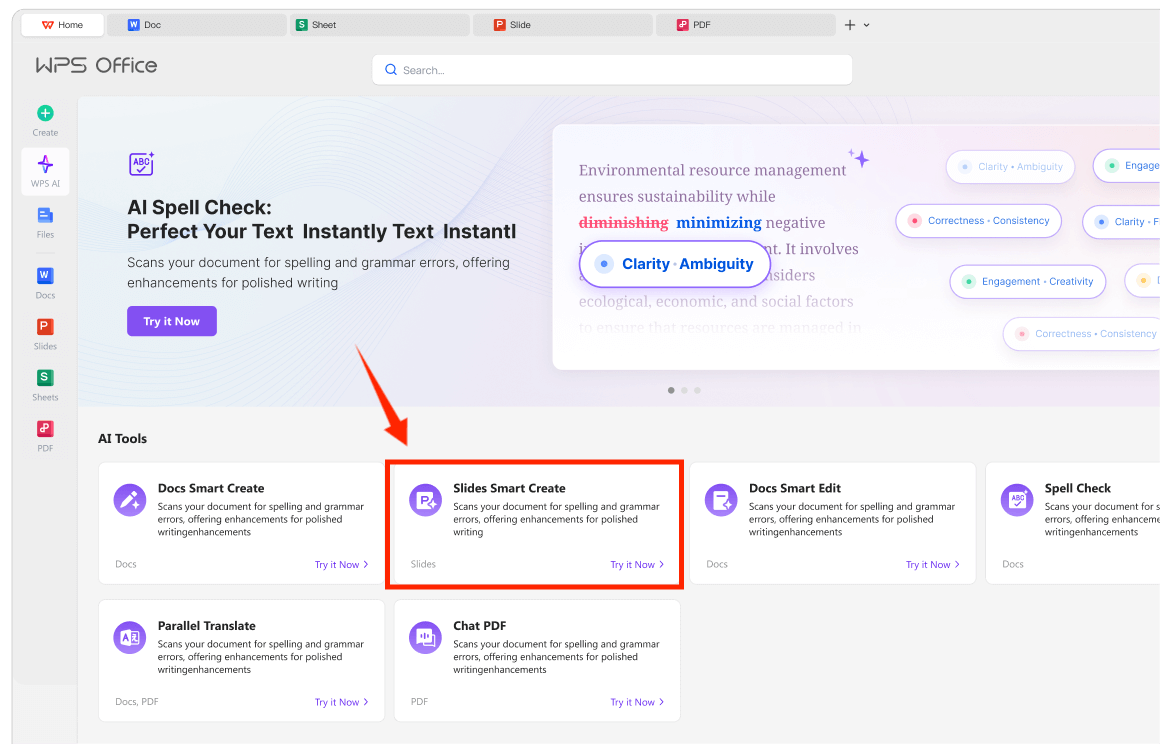
Open WPS Presentation and switch to the WPS AI tab.
Choose Create From File or Generate Slides from Document (WPS AI Slides).
Upload your document — Word file, PDF, or plain-text notes. WPS AI Slides extracts key points and organizes them into a structured outline with chapters and highlights.
Review or rearrange the generated outline — confirm section order and key points before generating slides.
Generate the deck.
Edit the generated deck in WPS Presentation — adjust text, layouts, and visuals in the editor.
Path B: You Only Have a Topic or Keywords
Use this path when you know your subject but have not written an outline yet.
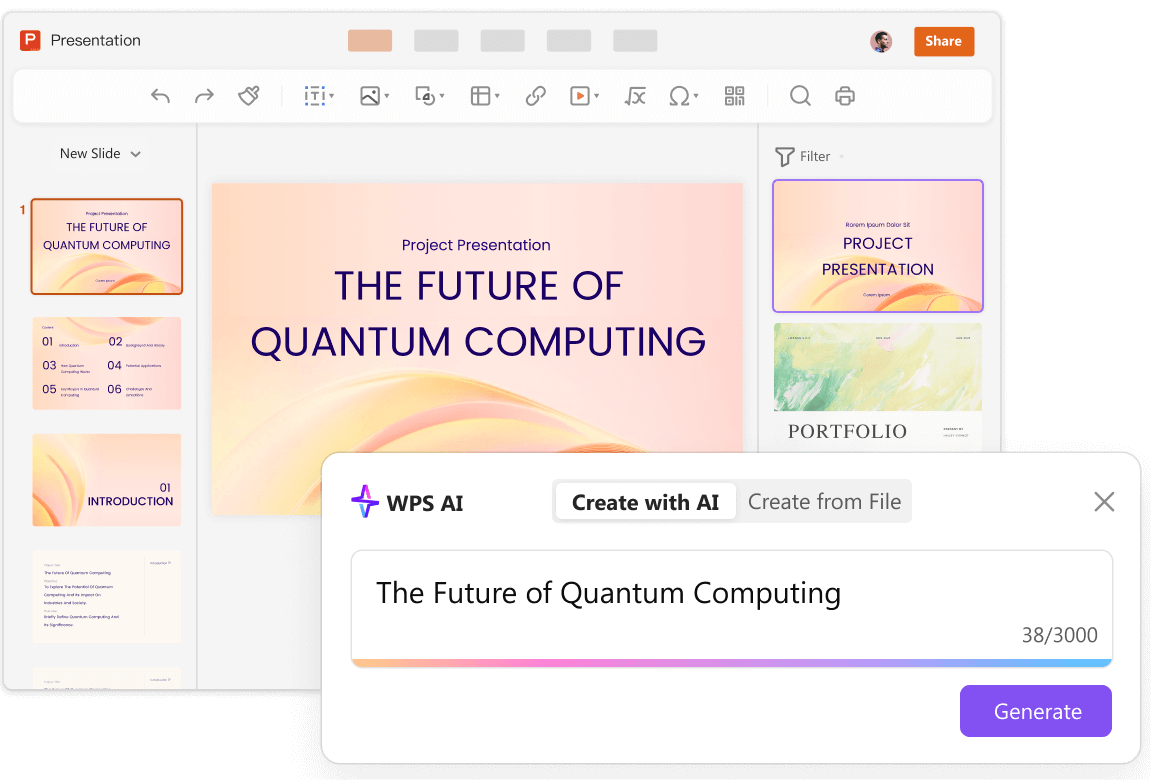
Open WPS Presentation and start Create With AI (WPS AI Slides).
Enter your topic or keywords to generate presentation content.
Review the AI outline before slide generation — confirm section order and key points match your plan.
Choose a template and click Create Slides to generate the deck.
Edit the generated deck in WPS Presentation — adjust text, layouts, and visuals in the editor.
WPS states compatibility with .ppt, .pptx, and .pptm presentation files.
FAQ
Can I review the outline before slides are generated in WPS?
Yes. WPS Academy describes a workflow where users enter a topic prompt via Create Slides with AI, review the AI outline, choose a template, and edit the generated deck in WPS Presentation.
Does WPS work with PowerPoint files?
WPS states compatibility with .ppt, .pptx, and .pptm presentation files.
What if I already have a written outline or document?
If your outline is already saved as a document or notes file, use the document-to-slides workflow described above. Map sections to slides manually in WPS Presentation, or upload your document through Create From File or Generate Slides from Document so WPS AI Slides extracts key points and builds a structured outline before generating slides.
Sources and Last Reviewed
| Source | URL |
|---|---|
| WPS AI Slides guide | https://www.wps.com/academy/wps-ai-slides-guide-quick-tutorials-1898624/ |
| Generate professional PPT with AI Slides | https://www.wps.com/academy/how-to-generate-professional-ppt-with-ai-slides-in-one-click/wps-tips/1882611/ |
| WPS AI PowerPoint generator | https://explore.wps.com/ppt/ai-powerpoint-generator |
Last reviewed: 2026-06-30