


Quick Answer: How Generative AI Changes Knowledge Base Maintenance
Generative AI changes knowledge base (KB) maintenance by accelerating first drafts, section refreshes, summarization of long source material into article format, and grammar or spelling passes—shifting human effort toward review, fact-checking, and ownership rather than blank-page writing.
Knowledge base maintenance typically covers creating new help articles, updating stale or incorrect entries, standardizing tone and structure, proofreading for clarity, and governing who can edit or publish—work that historically required manual rewrite cycles.
Integrated suite AI (AI tools inside the document editor) differs from external chat tabs for KB work: when drafting and refining KB articles inside Writer, formatted headings, lists, and .docx structure stay in place and teams avoid copy-paste breakage between a chat tool and office files.
WPS Office is a free all-in-one suite to edit Word, Excel, and PPT on Windows, macOS, Linux, iOS, and Android. For document-based KB maintenance, use WPS AI Writer in Writer (Smart Create, Refine, Spell Check, Extract Text), iterate with Accept / Redo / Discard, share articles in WPS Docs with real-time edits, comments, and permission controls, then save as .docx and verify file compatibility on target systems.
Editorial check: KB articles require human fact-checking before publish; an internet connection is required for AI processing; confirm AI limits on live WPS pricing before heavy use; AI results may still require manual editing. This guide covers document-based KB articles in WPS Writer and WPS Docs—not dedicated wiki platform comparisons, RAG architecture, or auto-detection of stale KB entries.
Identify stale or missing KB topic — human triage for gaps and outdated entries
Smart Create draft — formatted headings and paragraphs in WPS Writer
Accept / Redo / Discard — iterate without restarting from scratch
AI Refine — refresh selected stale KB sections
AI Spell Check — reduce manual proofread passes
Extract Text (optional) — digitize legacy printed or scanned help content
Human SME review — verify facts, procedures, and product details
Share in WPS Docs — co-edit, comment, and apply permissions
Periodic refresh cycle — schedule human triage for stale entries
Key Facts
| Topic | Detail |
|---|---|
| KB maintenance scope | Create new help articles, update stale entries, standardize tone and structure, proofread for clarity, govern who can edit or publish |
| Gen AI shift | Accelerates first drafts, section refreshes, summarization into article format, and grammar/spelling passes—humans focus on review, fact-checking, and ownership |
| KB maintenance risks | Hallucinated procedures, outdated product details in AI drafts, inconsistent tone, over-trusting AI summaries—treat AI output as draft material requiring subject-matter review |
| Integrated vs external chat | AI inside Writer keeps formatted headings, lists, and .docx structure; external chat requires paste-back and risks broken styles and structure |
| WPS AI Writer toolkit | Smart Create, Refine, Spell Check, and Extract Text are built-in AI writing enhancements for KB maintenance tasks |
| Smart Create workflow | Docs tab → Smart Create → AI prompt box and preset instructions → formatted draft with headings and structure |
| Iteration | Discard, Redo, or Accept; follow-up instructions to optimize or expand KB sections |
| AI Refine | Enhances selected content for structure and tone; select specific sentences; may change original tone on policy-sensitive KB articles |
| AI Spell Check | Catches spelling and grammar issues—supports quality maintenance but does not replace human verification of facts, steps, and product details |
| Extract Text (OCR) | Upload image, preview extracted text for copy into KB articles—useful for digitizing legacy printed or scanned help content; unclear images or handwriting may fail |
| Find & Replace | Ctrl + H batch-replaces repeated placeholders (product names, version strings) across KB articles |
| WPS Docs collaboration | Simultaneous edits, comments, and view/edit permission controls; file management and member management fit for SMB team KB maintenance |
| File compatibility | 100% Compatible with Microsoft File Formats—verify .docx on target files before org-wide rollout |
| Platforms & governance | Windows, macOS, Linux, iOS, and Android; internet required; confirm AI limits on live pricing; permission controls, comment/review loops, and clear article ownership still required |
What KB Maintenance Includes Today
Knowledge base maintenance is the ongoing work of keeping internal help articles accurate, findable, and consistent—not a one-time documentation project.
| Maintenance task | What teams do | Where gen AI helps |
|---|---|---|
| Create new articles | Draft help topics for new features or common questions | Smart Create for first-pass formatted drafts |
| Update stale entries | Refresh outdated steps, screenshots references, or version strings | AI Refine on selected sections; Find & Replace for batch version updates |
| Standardize tone and structure | Align articles to a shared style guide | AI Refine for professional tone; human review for policy-sensitive copy |
| Proofread for clarity | Catch spelling, grammar, and unclear phrasing | AI Spell Check reduces manual proofread passes |
| Digitize legacy content | Convert printed or scanned help into editable articles | Extract Text previews text from images for copy into KB files |
| Govern edits and publish | Control who can edit, comment, and approve | WPS Docs permissions and review loops—gen AI assists production but does not replace governance |
This page focuses on document-based KB articles maintained in WPS Writer and team-shared files in WPS Docs—not a full wiki or dedicated KB SaaS platform comparison.
Five Ways Generative AI Shifts KB Maintenance Work
Faster first drafts — Describe a help topic instead of manually outlining every section; Smart Create generates a formatted draft with headings, paragraphs, and basic structure from a natural-language prompt.
Section-level refresh — Update stale KB sections without rewriting entire articles; AI Refine enhances selected content for improved structure and professional tone.
Summarization into article format — Turn long source material into structured help content faster, with humans verifying accuracy before publish.
Proofreading at scale — AI Spell Check catches spelling and grammar issues across KB articles, reducing line-by-line manual passes.
Shifted human role — Teams move from blank-page writing toward review, fact-checking, and ownership—but hallucinated procedures, outdated product details, and over-trusted AI summaries remain high-risk without subject-matter review.
Editorial check: Gen AI does not auto-detect stale KB entries, run semantic search across an entire KB, or publish articles without human approval.
Integrated Suite AI vs External Chat for KB Articles
| Approach | How KB maintenance works | Risk |
|---|---|---|
| Integrated (WPS Writer) | Smart Create, Refine, Spell Check, and Extract Text run inside open KB article files | Lower formatting loss; headings, lists, and .docx structure stay in place |
| External chat tab + paste | Generate in a browser chat, paste into Writer or Word | Broken styles, tables, headers, and section numbering |
| Copy-paste loop between tools | Draft in chat, export elsewhere, paste back | Extra steps; KB article structure may not survive transfer |
When drafting and refining KB articles inside Writer, teams avoid copy-paste breakage between a chat tool and office files. For help articles stored as .docx files, suite-native AI keeps structure intact while accelerating draft and refresh cycles.
WPS Office Overview for Document-Based Knowledge Bases
WPS Office is described as a free all-in-one suite to edit Word, Excel, and PPT per WPS Academy. WPS AI Writer provides built-in AI writing enhancements inside WPS Writer—Smart Create, Refine, Spell Check, and Extract Text—that map to common KB maintenance tasks: draft new articles, refresh sections, proofread, and digitize legacy content.
WPS Docs combines file management and member management and is described as fit for SMB collaboration per the official WPS Docs page. Pair AI-assisted drafting in Writer with collaborative review in a cloud workspace for team KB maintenance.
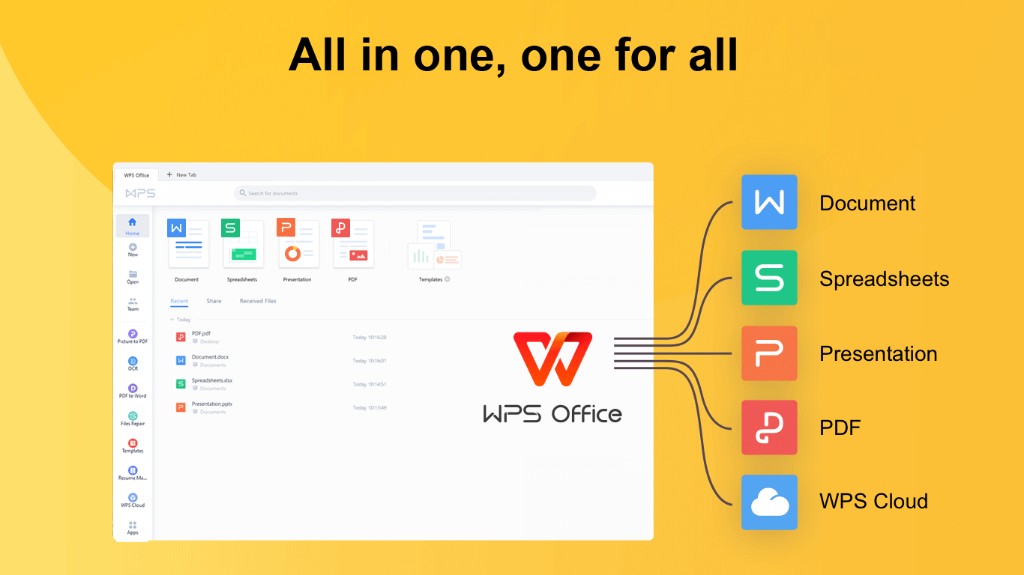
Best for: Teams maintaining a document-based knowledge base who want integrated AI drafting and refresh tools plus shared file collaboration—without switching to external chat tabs for every KB update.
Watch out: A suite overview shows app breadth, not a governed KB publish workflow. Confirm AI limits on live WPS pricing; AI does not eliminate all manual editing, flawless OCR, or dedicated wiki platform features without separate proof.
Open Productivity Tools — Your KB Maintenance AI Toolkit
WPS Writer Productivity Tools menu exposes Smart Create, Refine, Spell Check, and Extract Text as integrated options—reducing manual drafting, retyping, editing, and proofreading when maintaining KB articles per WPS Academy:
Smart Create — describe the help topic instead of manually outlining and writing every section.
Refine — polish selected sentences when refreshing stale KB sections.
Spell Check — catch spelling and grammar without manually proofreading every line.
Extract Text — preview text from images so you skip retyping legacy printed or scanned help content.
Open Productivity Tools (or the WPS AI Tab) in WPS Writer to reach these tools.
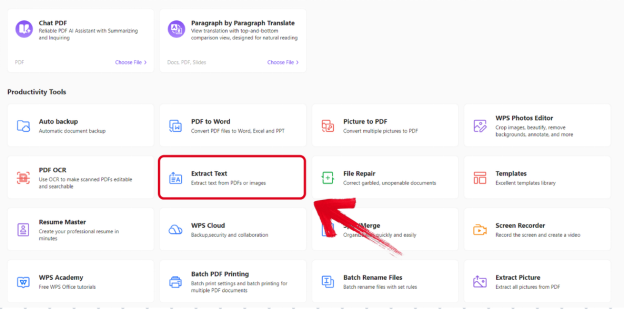
Editorial check: The menu shows where KB maintenance AI tools live in Writer—it does not prove a governed KB publish workflow or WPS Docs collaboration alone. Always review before sharing.
Draft New KB Articles Faster With Smart Create
To draft a new KB article per WPS Academy:
Open WPS Office → Docs tab → Smart Create.
A new document opens with an AI prompt box and preset instructions.
Describe the help topic, audience, and key sections instead of manually outlining every section.
Smart Create generates a formatted draft with headings, paragraphs, and basic structure from your natural-language prompt.
Enter follow-up instructions to optimize or expand KB sections after the initial draft.
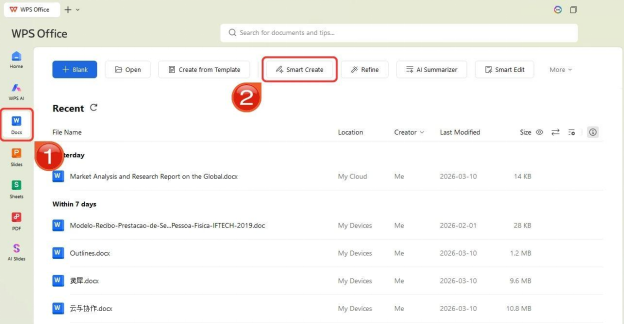
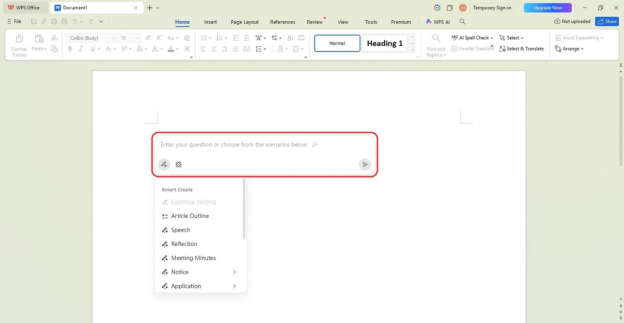
Editorial check: Smart Create produces first-pass KB articles that still require subject-matter review. Do not claim the prompt box alone eliminates all keystrokes or human fact-checking. Steps are sourced for desktop Writer workflow.
Iterate KB Drafts With Accept, Redo, or Discard
After Smart Create generates a KB draft, WPS Academy documents three controls:
Discard — reject output without inserting it.
Redo — request a new version from the same prompt.
Accept — insert the AI content into the document.
This supports iterative KB maintenance without restarting from scratch—faster than deleting and retyping entire help sections manually.
Editorial check: Iteration controls speed refinement—they do not replace human fact-checking of procedures, product details, and version-specific steps.
Refresh Stale KB Sections With AI Refine
AI Refine reviews and enhances selected content for improved structure and professional tone—applicable when refreshing stale KB sections per WPS Academy. WPS Academy recommends selecting specific sentences rather than entire documents, and warns Refine may change original tone on policy-sensitive articles such as compliance notes, legal disclaimers, or fixed policy language.
To run AI Refine on a stale KB section:
Select specific sentences in the section you want to refresh.
Open Refine from Productivity Tools.
Review suggestions in the Refine window.
Choose Accept, Redo, or Discard per suggestion.
Re-read accepted text against your source materials and product documentation.
Editorial check: AI Refine does not auto-detect stale articles or replace subject-matter expert fact-checking. Verify procedures and tone before publish.
Keep KB Quality With AI Spell Check
AI Spell Check helps catch spelling and grammar issues across KB articles—supporting quality maintenance but not replacing human verification of facts, steps, and product details per WPS Academy.
To run a KB quality pass:
Open the KB article in WPS Writer.
Launch Spell Check from Productivity Tools.
Review each flagged issue in the Spell Check window.
Accept or dismiss suggestions, then manually verify technical terms, product names, and procedural steps.
Editorial check: Spell Check reduces manual proofread passes—it does not confirm that help steps are correct or that product details are current.
Digitize Legacy KB Content With Extract Text (OCR)
Extract Text lets users upload an image and preview extracted text for copy into KB articles—useful when digitizing legacy printed or scanned help content per WPS Academy.
To digitize legacy KB material:
Open Extract Text from Productivity Tools.
Upload a clear scan or photo of the legacy help page.
Preview extracted text before copying it into your KB article.
Edit and structure the copied text; run AI Refine or Spell Check as needed.
Have a subject-matter expert verify accuracy before publish.
Editorial check: WPS Academy notes unclear images or handwriting may fail. Do not claim flawless OCR of legacy KB content. High-quality scans improve results.
Batch-Update KB Placeholders With Find & Replace
When product names or version strings change across many KB articles, Find & Replace (Ctrl + H) lets users batch-replace repeated placeholders (e.g., product names, version strings) across KB articles—documented as a maintenance tip after Smart Create per WPS Academy.
Use Find & Replace after AI-assisted drafts to align terminology with your current style guide and product naming—then re-read affected sections for context, not just string matches.
Share and Maintain KB Articles Together in WPS Docs
For team KB maintenance, store and share article files in WPS Docs where teams can edit simultaneously, leave comments, and apply view/edit permissions per the official WPS Docs page. WPS Docs documents simultaneous edits and comments in real time and view/edit permission controls—pair AI-assisted drafting in Writer with collaborative review in a cloud workspace.
Collaborative KB maintenance still requires permission controls, comment/review loops, and clear article ownership—generative AI assists content production but does not replace governance over who publishes or approves KB changes.
Editorial check: Co-editing UI proof is not embedded in this draft; collaboration claims are limited to text facts from the official WPS Docs page. Verify permissions and review workflows match your organization's KB governance policy.
Save, Export, and Verify .docx Compatibility
Before org-wide KB rollout:
Save KB articles in your team's preferred format (commonly
.docx).WPS pricing page states 100% Compatible with Microsoft File Formats for Office Tools—verify against target files before migration per WPS Academy guidance.
Open saved files on recipient systems to confirm headings, lists, and tables render correctly.
Re-check AI-assisted sections after export—formatting should survive in-place Writer workflows better than paste-from-chat workflows.
Editorial check: Compatibility claims require verification on your target files and Office versions—not assumption from marketing copy alone.
Governance Tips: Human Review, Ownership, and AI Limits
| Governance area | Recommended practice |
|---|---|
| Human review | Treat all AI KB output as draft material; subject-matter experts verify procedures, product details, and version-specific steps before publish |
| Hallucination watchouts | Watch for hallucinated procedures, outdated product details embedded in AI drafts, and over-trusted AI summaries |
| Tone on policy-sensitive KB | Use AI Refine on selected sentences only; re-read compliance and policy language after any AI polish |
| Article ownership | Assign clear owners for each KB article; use WPS Docs comments and permissions for review loops |
| AI limits | Confirm AI limits on live WPS pricing before heavy KB refresh cycles; internet connection required for AI processing |
| Periodic refresh | Schedule human triage for stale entries—gen AI accelerates refresh but does not auto-detect stale articles |
Editorial check: Do not claim WPS AI auto-detects stale KB entries, semantic search across entire KB, unlimited AI on free tier, or one-click publication-ready KB without human review.
FAQ
Does generative AI replace KB subject-matter experts?
No. Gen AI accelerates first drafts, section refreshes, and proofreading passes, but KB articles require human fact-checking before publish. Teams should treat AI output as draft material requiring subject-matter review—especially for procedural steps and product details.
Can WPS AI Writer maintain a full enterprise wiki?
This guide covers document-based KB articles in WPS Writer and team-shared files in WPS Docs—not a replacement for dedicated wiki platforms such as Confluence, Notion, or SharePoint without separate product evidence. WPS Docs supports simultaneous edits, comments, and permission controls for shared KB files.
How do I refresh stale KB sections without rewriting entire articles?
Select specific sentences in the stale section, open AI Refine from Productivity Tools, review suggestions, and choose Accept, Redo, or Discard. Verify facts and tone afterward—Refine may change original tone on policy-sensitive KB articles.
Does AI Spell Check verify that help steps are correct?
No. AI Spell Check catches spelling and grammar issues but does not replace human verification of facts, steps, and product details. Always have a subject-matter expert confirm procedural accuracy.
Can I use WPS AI on mobile for KB maintenance?
WPS is available on Windows, macOS, Linux, iOS, and Android, but desktop steps in this guide are sourced from WPS Academy Writer workflow documentation. Verify mobile AI tool availability and steps on your device before relying on them for KB maintenance.
Are there AI usage limits on the free tier?
Confirm AI limits on live WPS pricing before heavy KB refresh cycles. Do not assume unlimited AI on any free tier. An internet connection is required for AI processing.
Does WPS auto-detect stale KB articles?
No. Gen AI assists drafting and refresh when humans identify stale or missing topics—it does not auto-detect stale KB entries or run semantic search across an entire KB without separate product evidence.
How do teams govern who publishes KB changes?
Use WPS Docs view/edit permission controls, comment/review loops, and clear article ownership. Generative AI assists content production but does not replace governance over who publishes or approves KB changes.
Sources and Last Reviewed
Last reviewed: 2026-07-01
| Source | Role |
|---|---|
| WPS AI Writer guide (Academy) | Primary: Smart Create, Refine, Spell Check, Extract Text KB maintenance workflow |
| WPS Docs | Team KB collaboration: simultaneous edits, comments, permissions |
| What is WPS Office (Academy) | Suite positioning |
| WPS pricing | File compatibility; AI limit recheck before publish |